SanDisk Disk Wipe Software: Erase Data Beyond Recovery
Standard formatting or deleting files on a SanDisk drive does NOT permanently remove data. Data recovery software can easily retrieve deleted files from un-overwritten space. To completely wipe a SanDisk drive, you need specialized SanDisk disk wipe software like DoYourData Super Eraser. It uses military-grade data overwriting algorithms (such as DoD 5220.22-M and NIST 800-88) to destroy all traces of data, making recovery 100% impossible.
 Updated by Shirly Chen on August 31, 2026
Quick Navigation:
- What Is SanDisk Disk Wipe Software
- Why Choose DoYourData Super Eraser
- How to Permanently Wipe SanDisk Drive Data
- Common Scenarios to Wipe a SanDisk Drive?
- SanDisk Dashboard vs. Disk Wipe Software
- FAQs about SanDisk Disk Wipe Software
- Final Thoughts
When you plan to sell, donate, return, or throw away a SanDisk SSD, USB flash drive, or micro/SD card, your first instinct is usually to press 'Delete' or run a quick format. However, these basic Windows or macOS operations do not actually wipe your personal information.
When you delete a file or format a storage device, your operating system merely deletes the file path index and marks that storage space as 'available' for future data. The actual content―your photos, financial documents, tax records, business data, and passwords―remains fully intact inside the drive's memory chips.
Anyone with data recovery software can scan the SanDisk drive and bring your confidential files back in minutes. If you want to make sure your sensitive information never falls into the wrong hands, you need professional SanDisk disk wipe software to permanently overwrite the storage space.
| Method | What Actually Happens | YES — Extremely Easy |
|---|---|---|
| File Deletion | Removes file headers and entry pointers. Actual binary file data stays in memory. | YES — Extremely Easy |
| Drive Formatting | Rebuilds file system index. Does not reliably overwrite raw memory blocks on flash drives. | YES — High Success Rate |
| Disk Wipe Software | Overwrites entire drive byte-by-byte with random bits and zeros (NIST/DoD standards). | NO — 100% Permanently Unrecoverable |
What Is SanDisk Disk Wipe Software
SanDisk disk wipe software is a specialized data destruction tool designed to permanently erase all contents on SanDisk storage media. Instead of just hiding or unlinking files, disk wipe software writes zero bytes, one bytes, or random patterns over every sector of the drive.
Because the original binary data is destroyed and replaced with meaningless random values, no data recovery tool, laboratory, or forensic expert can reconstruct the original files.
Key Wipe Standards Supported by Top Erase Software
- Zero-Fill (1 Pass): Replaces all data bytes with zeros. Fast and effective for basic personal privacy.
- Random Data Overwrite (1 Pass): Overwrites drive memory with random characters in a single pass.
- DoD 5220.22-M (3 Passes): U.S. Department of Defense standard. Uses 3 passes (Zeros, Ones, Random) for high security.
- Peter Gutmann Method (35 Passes): Standard approved by the U.S. Navy for military-grade security.
- NIST SP 800-88 Guidelines: The gold standard recommended by the National Institute of Standards and Technology for modern SSDs and flash storage.
Why Choose DoYourData Super Eraser
While there are basic built-in tools like Disk Management or Diskpart, they can be risky to use, tricky for non-tech users, and often fail to wipe flash memory securely. DoYourData Super Eraser stands out as the ultimate SanDisk disk wipe software for Windows and Mac.
Key Features of DoYourData Super Eraser:
- 3 Flexible Erase Modes: Wipe individual files/folders, wipe entire SanDisk drives, or clean only deleted/free space without losing existing files.
- Universal SanDisk Hardware Support: Fully compatible with SanDisk Extreme Portable SSD, Ultra Dual Drive USB, Extreme PRO SDHC/SDXC cards, and SanDisk internal NVMe/SATA SSDs.
- Military-Grade Security: Uses certified data wiping algorithms including HMG Infosec, DoD 5220.22-M, NIST 800-88, and Gutmann.
- SSD & Flash Friendly: Designed specifically to handle flash controller wear-leveling algorithms without damaging your hardware.
- 100% User-Friendly Interface: Clean, intuitive visual layout. Select your SanDisk drive, click 'Erase Now', and let the software do the rest.
How to Permanently Wipe SanDisk Drive Data
Wiping your SanDisk storage drive with DoYourData Super Eraser takes only a few simple steps. Follow this visual guide to sanitize your drive quickly and safely.
⚠️ Important Safety Warning Before You Start: Data erased by DoYourData Super Eraser CANNOT be recovered by any means. Please double-check your drive letter and back up any essential photos, documents, or personal files to another storage device before proceeding!
Option 1: Complete SanDisk Disk Wipe (Erase Whole Drive)
Use this option if you plan to sell, donate, or recycle your SanDisk SSD, USB flash drive, or memory card.
Step 1: Download & Connect ― Connect your SanDisk drive to your Windows PC or Mac computer. Download and install DoYourData Super Eraser.
DoYourData Super Eraser
- Best Disk Wipe Software for SanDisk HDD/SSD/SD card.
- 3 modes to wipe data in different situations.
- Permanently wipe data with certified data wiping algorithms.
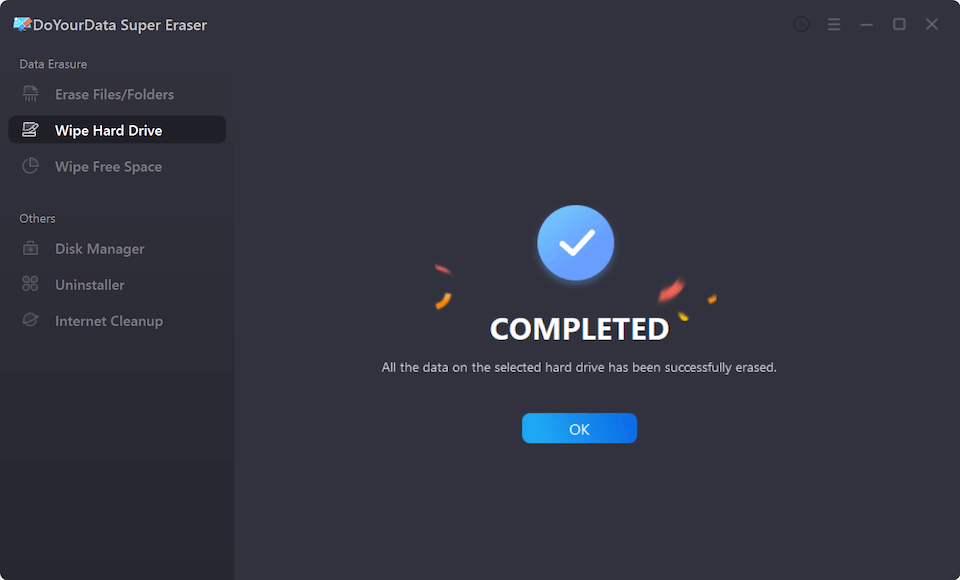
Step 2: Choose 'Wipe Hard Drive' ― Launch the program and click on the Wipe Hard Drive mode on the main dashboard. Find your SanDisk drive from the list of available disks. Double-check the drive size and letter to make sure you selected the right device.
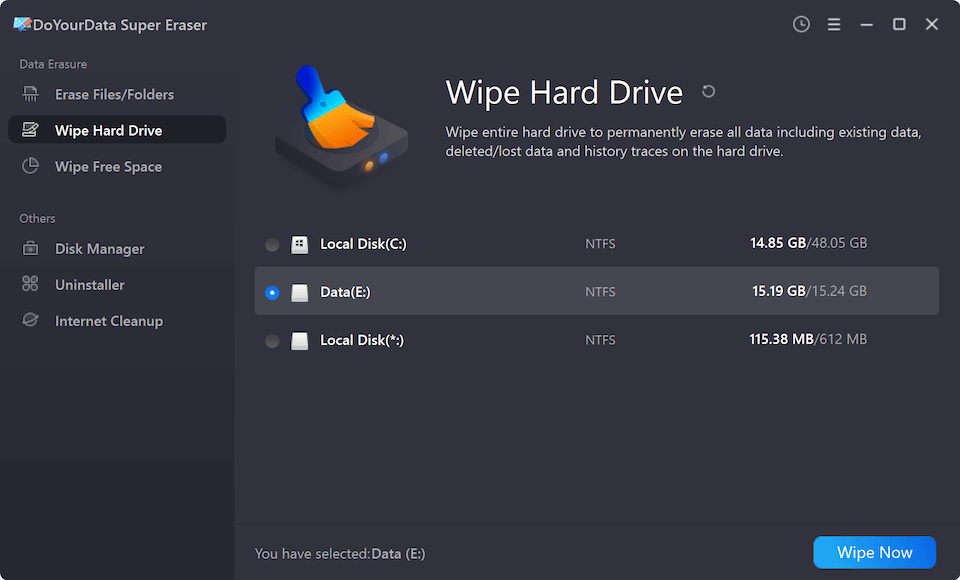
Step 3: Select the Wiping Algorithm ― Click the Wipe Now button and then select the data erasure standard from the drop-down menu.
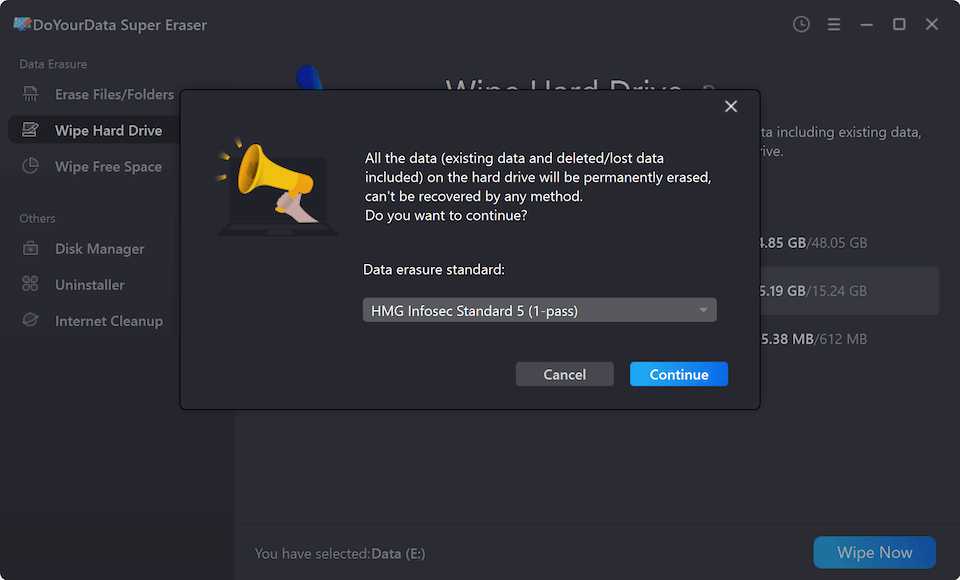
Step 4: Execute Data Wipe ― Click the Continue button. Confirm the prompt to start the deep wiping process.
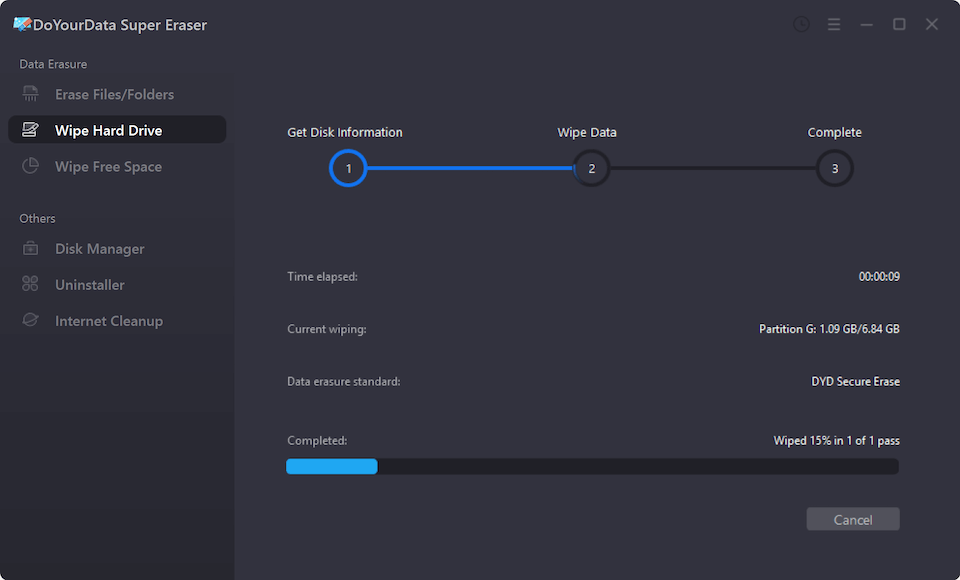
Step 5: Completion ― Once the process finishes, every bit of data on your SanDisk drive will be permanently erased.
Option 2: Erase Selected Files & Folders
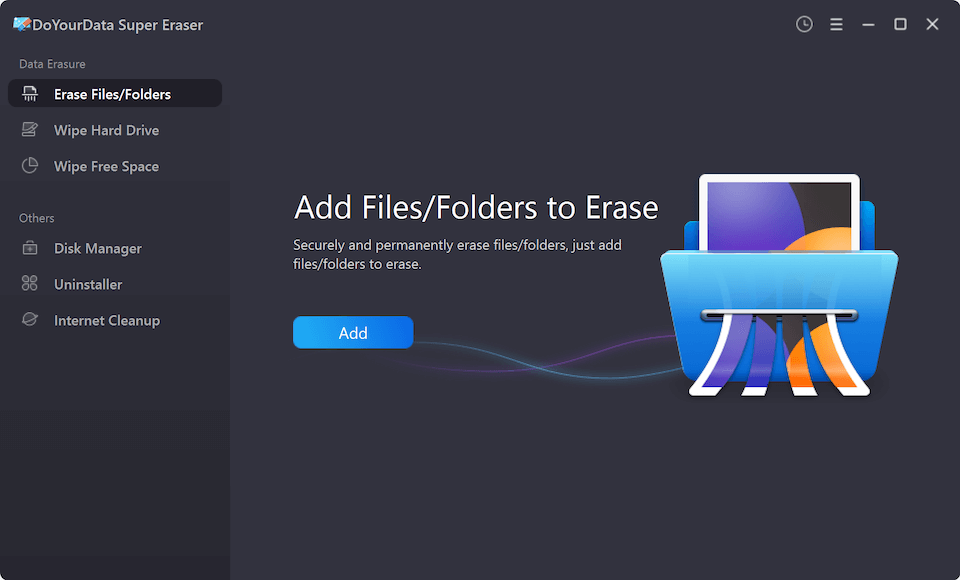
If you want to remove specific confidential business documents or private photos from your SanDisk drive while keeping other files untouched, select the 'Erase Files/Folders' mode. Add your target files and click Erase Now.
Option 3: Wipe Unused Free Space
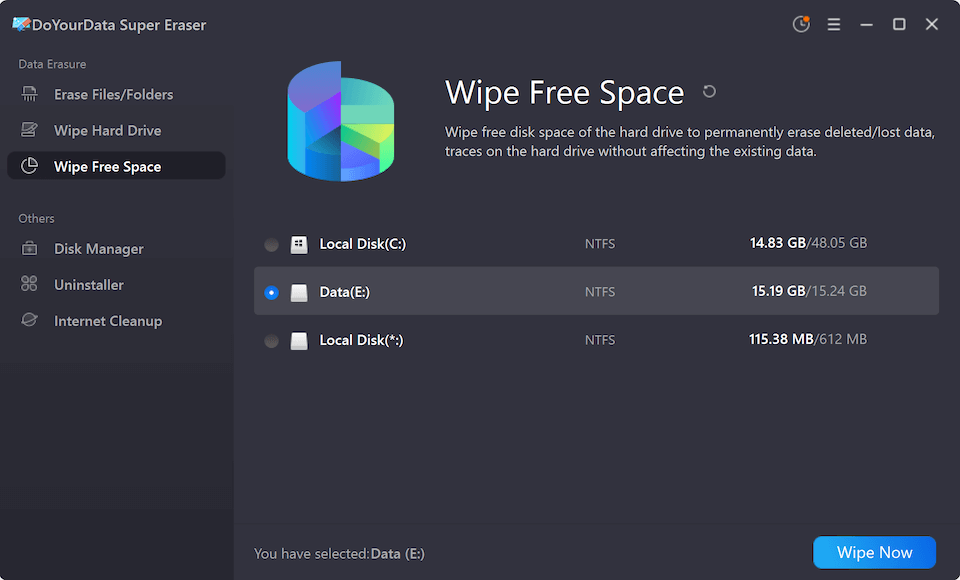
If you previously deleted files on your SanDisk drive in the past and want to ensure those deleted files are gone forever, choose Wipe Free Space. This will sanitize deleted data without affecting your active, non-deleted files.
Common Scenarios to Wipe a SanDisk Drive?
Data privacy is more important today than ever before. Here are the top everyday situations where using SanDisk disk wipe software is essential:
- Selling or Gifting Devices: Before giving away or selling your SanDisk Extreme Portable SSD or SD card on platforms like eBay, Amazon, or Craigslist.
- Returning Workplace / School Equipment: When returning an external SanDisk USB drive or SD card to an employer or university IT department.
- Disposing of Old Personal Archives: Clearing out SanDisk drives used for tax returns, medical records, financial statements, or personal photos.
- Removing Stubborn Malware / Viruses: If your SanDisk flash drive has malware or ransomware, a low-level disk wipe completely destroys all malicious scripts.
- Enterprise & Regulatory Compliance: Companies must erase old SanDisk storage media to remain compliant with privacy laws like HIPAA, GDPR, CCPA, and PCI-DSS.
SanDisk Dashboard vs. Disk Wipe Software
SanDisk offers an official utility called SanDisk Dashboard (for SSDs). Many users ask: Is SanDisk Dashboard enough, or do I need dedicated wipe software?
SanDisk Dashboard includes a 'Sanitize' feature that issues a TRIM or ATA Secure Erase command. While useful, it has several limitations:
- Limited Device Support: SanDisk Dashboard only supports internal SanDisk SSDs and select portable SSDs. It does NOT support SanDisk USB flash drives or SD cards.
- OS Locking Issues: Secure Erase commands often fail on Windows because the drive status is locked by the OS 'frozen' state.
- Platform Constraints: SanDisk Dashboard is primarily Windows-focused and lacks comprehensive macOS support.
In contrast, DoYourData Super Eraser works across all SanDisk product lines (SSDs, USBs, MicroSDs), runs seamlessly on both Windows and Mac, and lets you wipe specific files or free space without wiping the entire drive.
FAQs about SanDisk Disk Wipe Software
Final Thoughts:
Your privacy is priceless. Leaving sensitive files on an old SanDisk drive exposes you to identity theft, data leaks, and financial risk. Deleting files or formatting the drive is simply not enough to safeguard your personal details.
By using reliable, professional SanDisk disk wipe software like DoYourData Super Eraser, you can permanently sanitize your SanDisk SSD, USB flash drive, or SD card in minutes. Download DoYourData Super Eraser today and erase your data with 100% confidence!
DoYourData Super Eraser
DoYourData Super Eraser, the award-winning data erasure software, offers certified data erasure standards including U.S. Army AR380-19, DoD 5220.22-M ECE to help you securely and permanently erase data from PC, Mac, HDD, SSD, USB drive, memory card or other device, make data be lost forever, unrecoverable!
Written & Updated by Shirly Chen
Shirly Chen has been writing data recovery, data erasure articles for DoYourData over 4 years. She has been working as a professional website content writer & editor for quite a long time. She also writes articles about disk clone, Mac optimization, disk backup, etc.