What to Do When USB Flash Drive Becomes Unreadable on macOS 27?
If a USB flash drive becomes unreadable on macOS 27 Golden Gate, do NOT format or initialize it immediately. First, recover your vital files using Do Your Data Recovery for Mac by selecting the unreadable drive, scanning it, and saving your files safely to your Mac. Once your data is safe, fix the drive by checking connection ports, adjusting Finder display settings, running Disk Utility First Aid, force mounting via Terminal, or formatting it to exFAT/APFS.
 Updated by Nancy on July 24, 2026
Quick Navigation:
- Why USB Flash Drive Become Unreadable on macOS 27?
- Crucial Step: Recover Your Data before Any Fixes
- Methods to Fix Unreadable USB Flash Drive on macOS
- FAQs about Fixing Unreadable USB Flash Drive on Mac
- Conclusion
Upgrading to macOS 27 Golden Gate offers a sleek new interface, enhanced security controls, and improved system responsiveness. However, connecting an external storage device can sometimes lead to an unexpected headache: a pop-up warning stating, "The disk you attached was not readable by this computer."
When a USB flash drive becomes unreadable on macOS 27 Golden Gate, it can disrupt your work and trigger panic—especially if the drive contains essential work documents, family photos, or project files. You might wonder if your drive is permanently broken or if your files are lost forever.
The good news is that an unreadable error rarely means your data is gone. In this guide, we will show you how to safely recover your files first using Do Your Data Recovery for Mac, and then walk you through reliable methods to fix your unreadable USB flash drive on macOS 27 Golden Gate.
Why USB Flash Drive Become Unreadable on macOS 27?
Understanding why your Mac cannot read your thumb drive makes it easier to prevent future storage errors. Here are the most common reasons:
- Unsafe Drive Removal: Unplugging the USB flash drive while files are actively copying can damage the file directory structure.
- Unsupported File System: Using a drive formatted with Windows-only file systems (like BitLocker-encrypted NTFS) without proper drivers on macOS.
- System Interruption: Unexpected power cuts or macOS system crashes during file transfer operations.
- Hardware or Connection Issues: Dusty USB-C ports, damaged hubs, or faulty USB adapters preventing stable communication between your Mac and the drive.
- Physical Drive Wear: Bad sectors or aging NAND flash memory components inside the USB drive.
Crucial Step: Recover Your Data before Any Fixes
Before trying to fix the unreadable USB drive on macOS 27 Golden Gate, keep this critical rule in mind:
Always prioritize data recovery before attempting disk repairs or formatting!
Many repair methods—such as formatting the drive or modifying partition tables—will wipe all existing data. Even built-in repair utilities like Disk Utility First Aid can occasionally alter damaged file structures, making raw file recovery much harder. By extracting your important files first, you protect your data regardless of the repair outcome.
Recover Files with Do Your Data Recovery for Mac
If your USB flash drive contains important files, Do Your Data Recovery for Mac is the safest and most effective tool to restore them from an unreadable, unmountable, or corrupted drive.
Do Your Data Recovery for Mac is an advanced data recovery software engineered specifically for macOS systems, including macOS 27 Golden Gate. It features a deep scanning engine that bypasses corrupted file system tables to read raw data directly from physical storage sectors. It supports all major formats, including APFS, HFS+, exFAT, FAT32, and NTFS.
Do Your Data Recovery for Mac
- Professional and effective Mac data recovery software.
- Fully compatible with macOS 27 Golden Gate.
- Recover data from USB flash drive, HDD/SSD, SD card, etc.
How to Recover Files from an Unreadable USB Drive Step-by-Step:
Step 1: Insert your unreadable USB flash drive into your Mac. Download and install Do Your Data Recovery for Mac . Launch the application from your Applications folder.
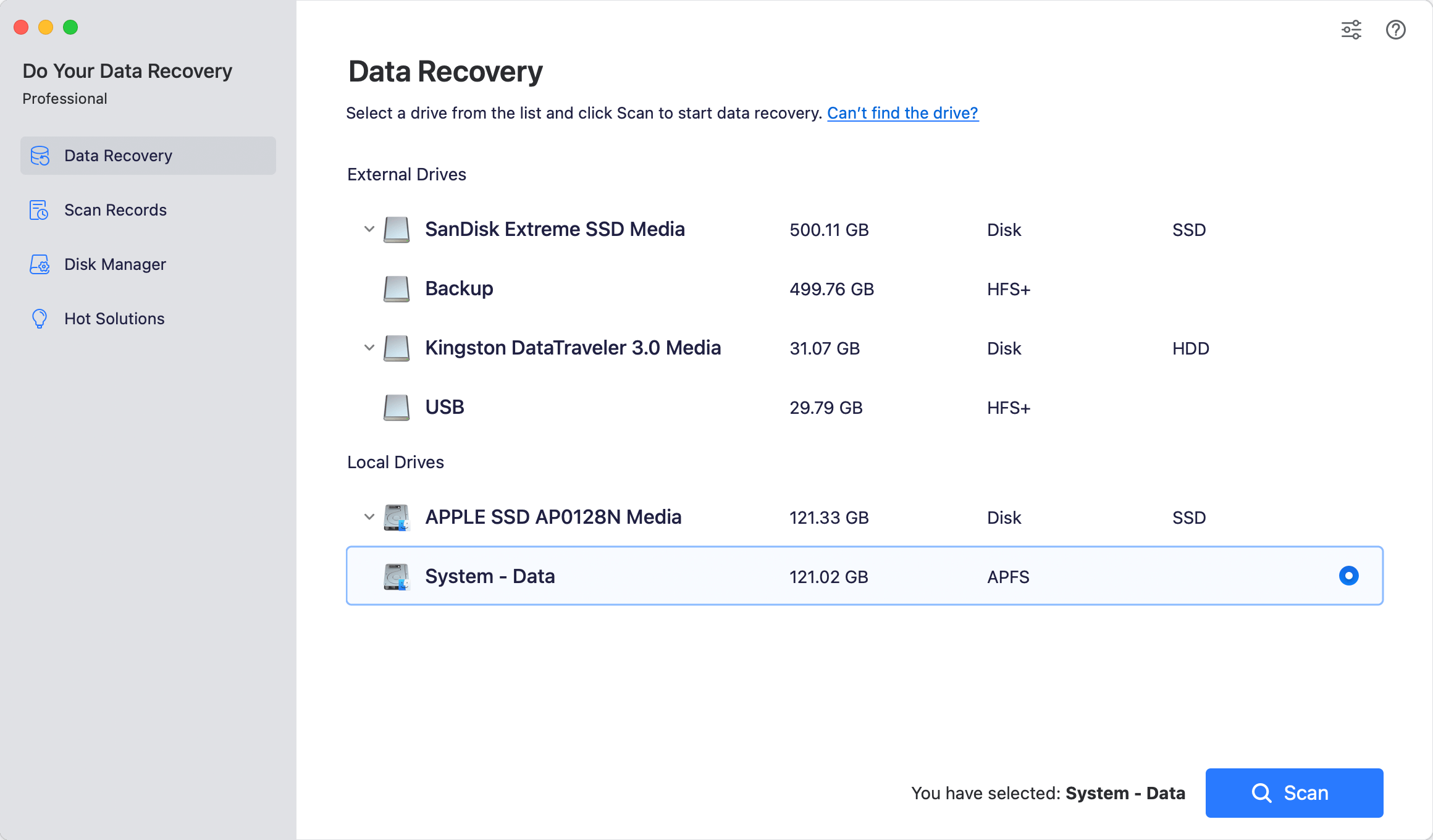
Step 2: On the main interface, Do Your Data Recovery for Mac will list all detected drives, including unmounted or unreadable volumes. Select your USB flash drive and click the Scan button.
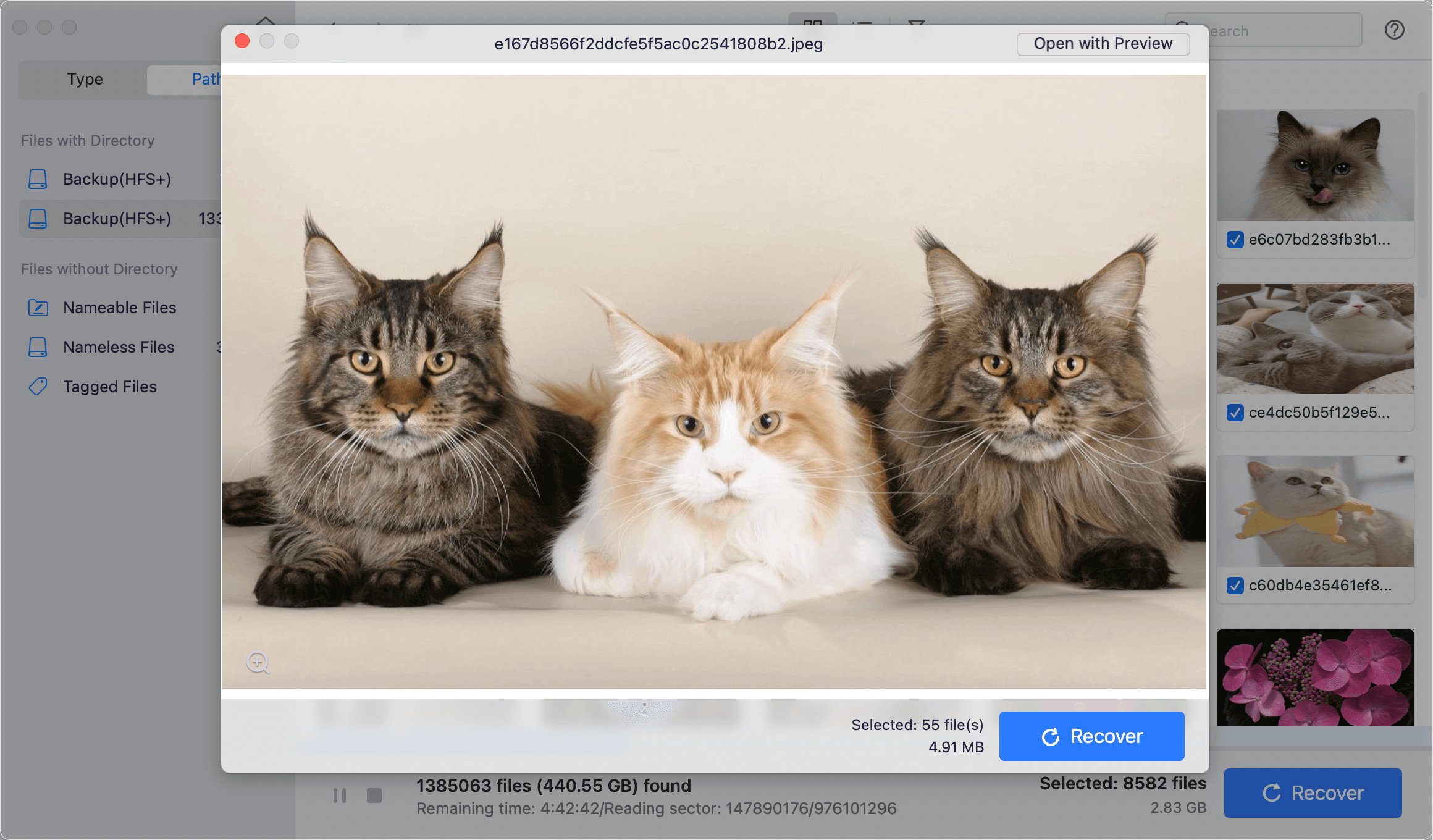
Step 3: Preview and Save Recovered Data. The software will execute a thorough sector scan. As files appear, you can pause or stop the scan, preview photos, videos, and documents, and tick the files you want to retrieve. Click the Recover button and save your files to a safe location on your Mac internal drive.
Key Advantages of Do Your Data Recovery for Mac:
- Deep Sector Scanning: Retrieves files from raw, formatted, inaccessible, and corrupted external drives.
- File Preview Feature: Inspect photos, PDF files, Office documents, and videos before committing to recovery.
- Read-Only Security: Scans without writing new data to the target drive, guaranteeing 100% data safety.
- Apple Silicon Optimized: Fully compatible with Intel Macs, T2 security chips, and Apple Silicon chips (M1 through M5).
Methods to Fix Unreadable USB Flash Drive on macOS
Once your vital files are safely saved on your Mac, you can proceed with fixing the USB drive so it functions properly again.
Method 1: Basic Hardware and Connection Troubleshooting
Sometimes an unreadable drive message is caused by a simple connection glitch rather than drive corruption.
- Try Different Ports: Disconnect the USB drive, wait 10 seconds, and plug it directly into another USB port on your Mac.
- Bypass USB Hubs: If you are using a USB hub or multiport adapter, bypass it and plug the flash drive directly into your Mac using an official Apple adapter.
- Clean Ports: Gently clean dust or lint from both the USB plug and your Mac USB-C ports using compressed air.
- Test on Another Computer: Plug the USB flash drive into another Mac or Windows PC. If it reads fine elsewhere, the issue lies in Mac system settings rather than drive hardware.
Method 2: Adjust Finder Display Settings on macOS 27 Golden Gate
If macOS detects your USB flash drive but does not show its icon on your desktop or sidebar, your Finder settings might be misconfigured.
Step 1: Open Finder on your Mac.
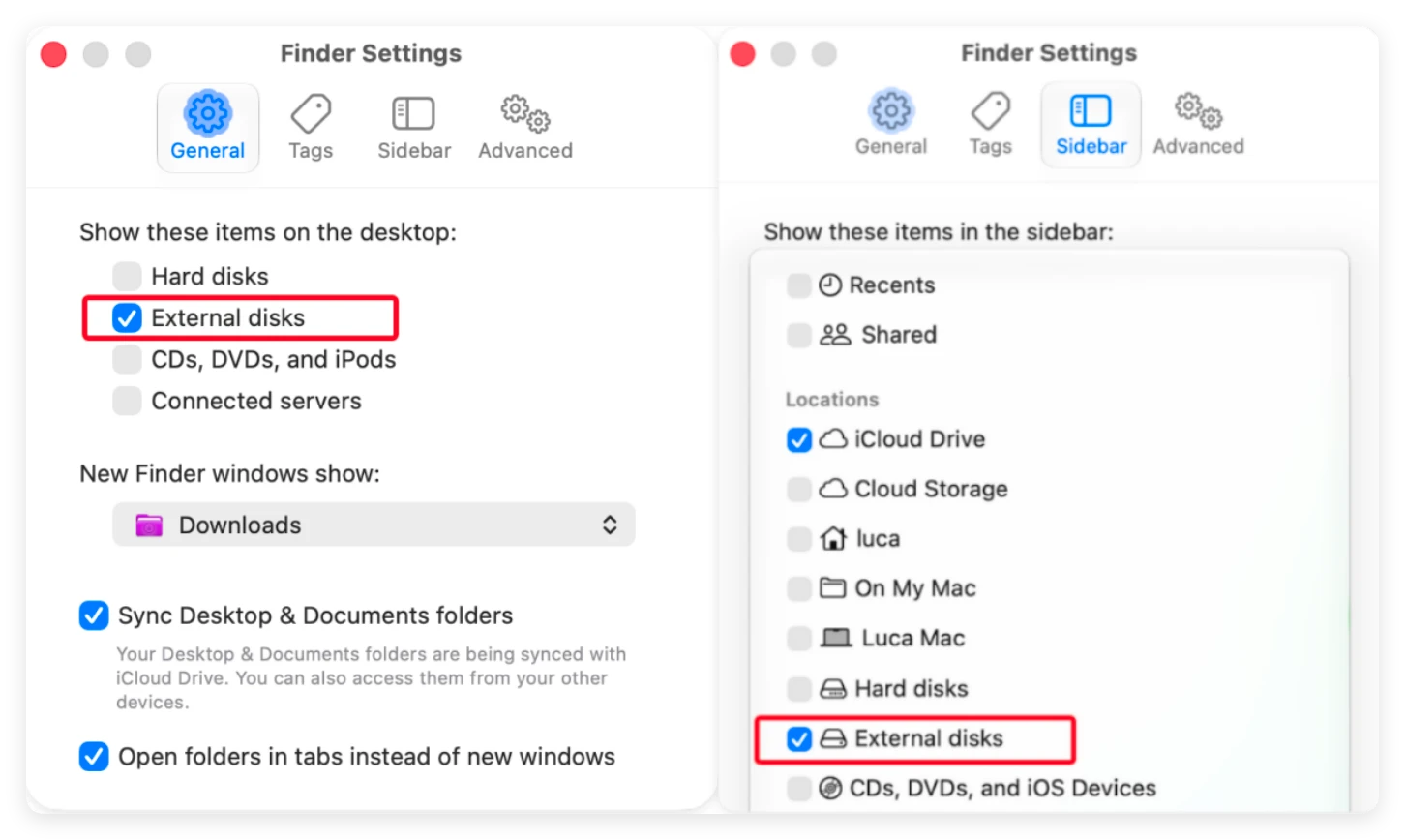
Step 2: In the top menu bar, click Finder and select Settings (or press Command + comma).
Step 3: Under the General tab, make sure External disks is checked.
Step 4: Switch to the Sidebar tab and ensure External disks is checked under Locations.
Step 5: Check your desktop and Finder sidebar to see if your USB flash drive is now accessible.
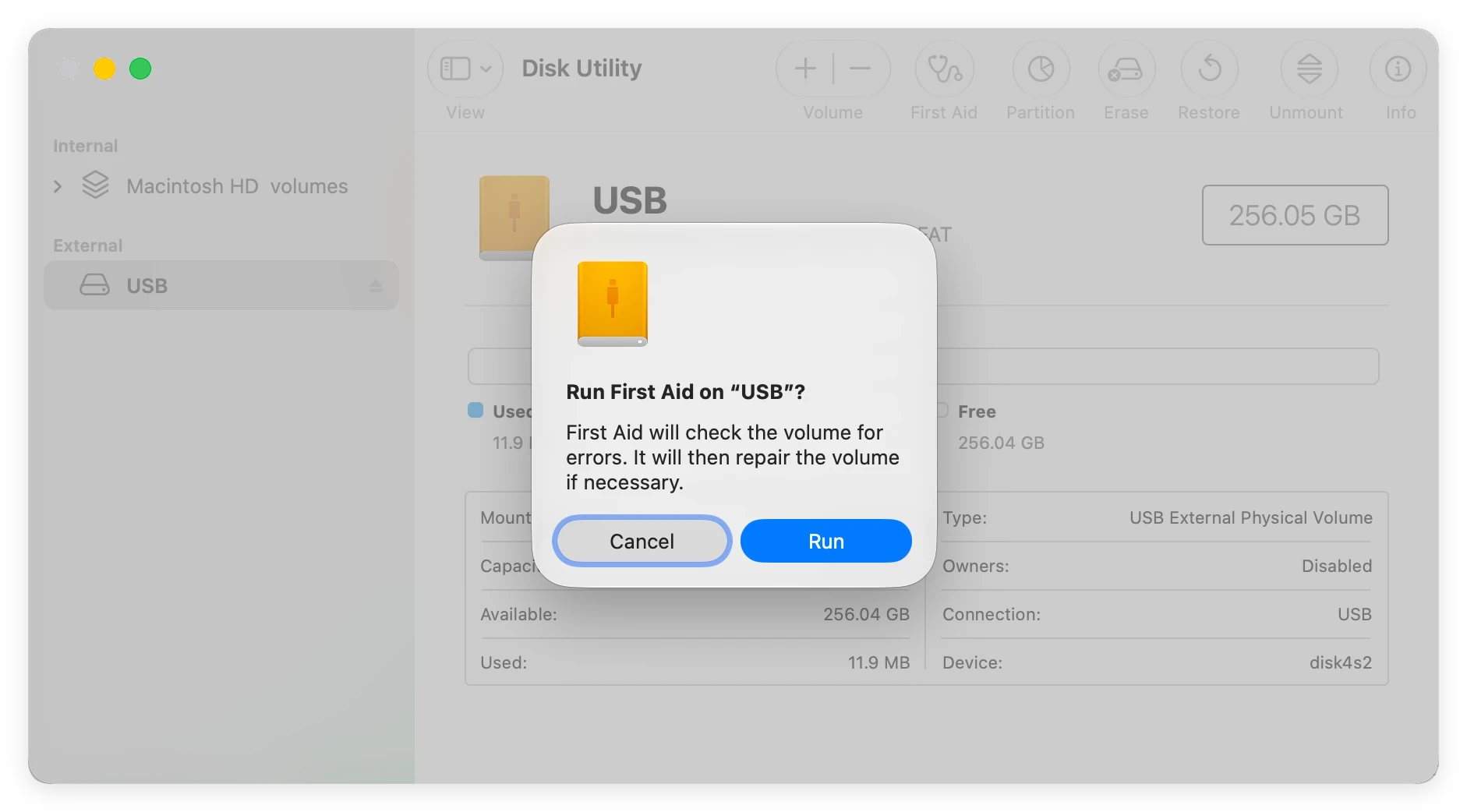
Method 3: Repair the Unreadable Drive Using Disk Utility First Aid
macOS 27 Golden Gate includes a built-in drive diagnostic tool called Disk Utility. Its First Aid feature can automatically scan and fix file directory errors.
Step 1: Press Command + Spacebar to open Spotlight, type Disk Utility, and press Enter.
Step 2: In Disk Utility, select your unreadable USB flash drive from the left sidebar.
Step 3: Click the First Aid button at the top toolbar, then click Run to start the repair process.
Step 4: Once Disk Utility finishes checking and repairing directory errors, click Done and re-eject/re-plug your drive.
Method 4: Force Mount the USB Flash Drive via Terminal
If Disk Utility cannot repair the drive, the file system might simply be stuck in an unmounted state. You can use Terminal commands to force macOS to mount the volume.
Step 1: Open Finder > Applications > Utilities > Terminal.
Step 2: Type 'diskutil list' and press Enter to list all attached storage devices.
Step 3: Find your USB flash drive in the list and note its disk identifier (e.g., '/dev/disk2' or 'disk2s1').
Step 4: Type 'diskutil mount /dev/disk2s1' (replace 'disk2s1' with your drive's actual identifier) and press Enter.
Step 5: If successful, your USB flash drive will appear on your desktop and in Finder.
Method 5: Format the USB Flash Drive for macOS 27 Golden Gate
If all repair attempts fail, the drive's file system is likely severely damaged. Formatting the drive will wipe the corrupted file system and rebuild a fresh one, making the USB drive usable again.
Important: Make sure you have recovered all important files with Do Your Data Recovery for Mac before formatting!
Step 1: Open Disk Utility from Finder > Applications > Utilities.
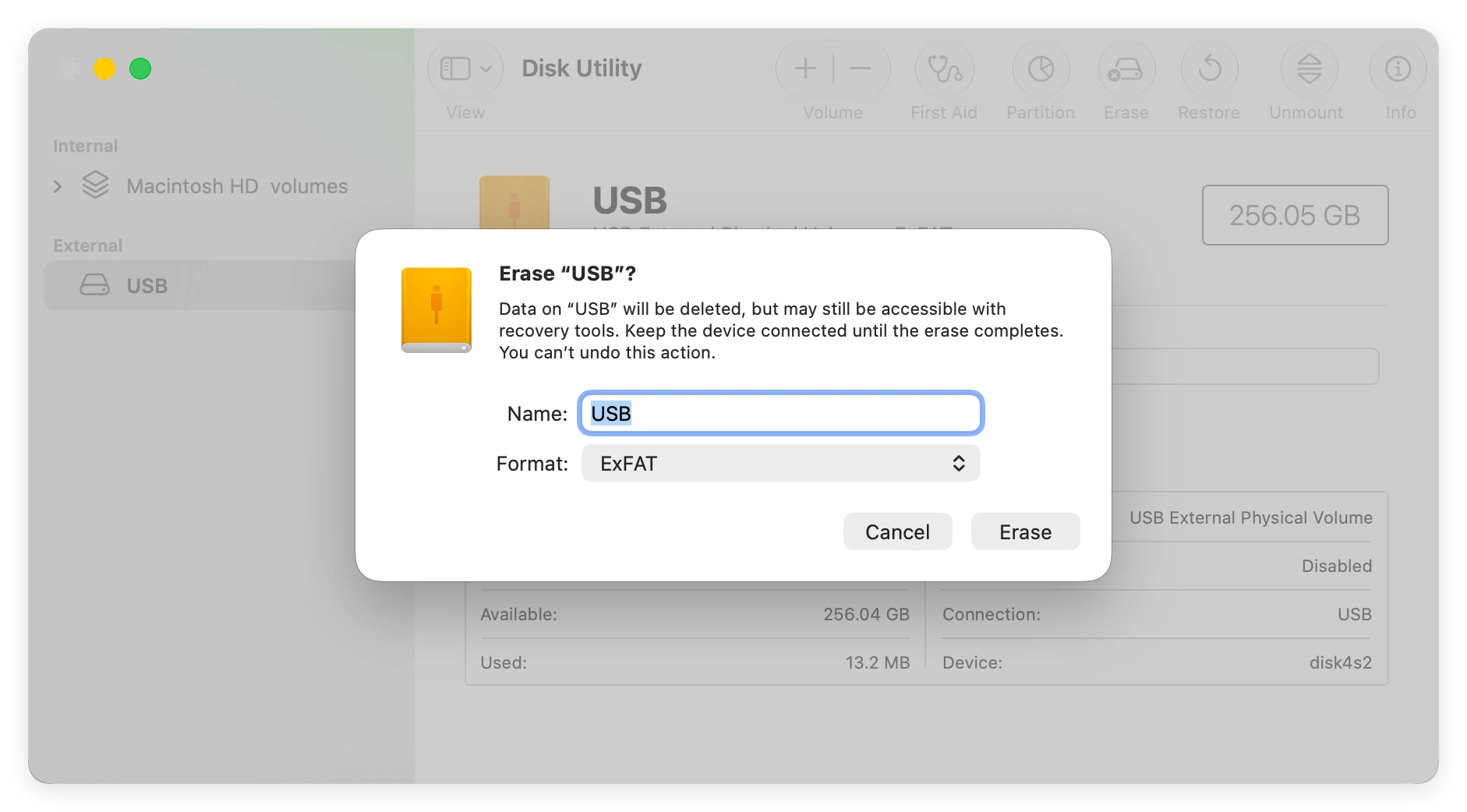
Step 2: Select your USB flash drive from the left sidebar and click Erase in the top menu bar.
Step 3: Choose a new name for your drive.
Step 4: Select a compatible file format: Choose exFAT if you plan to use the drive on both Mac and Windows, or APFS / Mac OS Extended (Journaled) if you only use Mac.
Step 5: Set Scheme to GUID Partition Map, then click Erase. Once complete, your USB flash drive will be fully readable and ready to use.
FAQs about Fixing Unreadable USB Flash Drive on Mac
Conclusion
Dealing with an unreadable USB flash drive on macOS 27 Golden Gate can be frustrating, but following the correct steps ensures your files remain safe.
Remember: Always recover your critical files first using Do Your Data Recovery for Mac before attempting any fixes or formatting. Once your data is safely backed up to your Mac, troubleshooting tools like Disk Utility First Aid, Terminal commands, or quick formatting will quickly get your USB drive working like new again!
Do Your Data Recovery for Mac
Do Your Data Recovery for Mac, one of the best Mac data recovery software, can help you easily and completely recover deleted, formatted or lost files from Mac HDD/SSD, external HDD/SDD, USB drive, memory card, digital camera, or other storage devices.
Written & Updated by Nancy
Nancy works as a tech columnist at DoYourData. She is familiar with macOS and Windows OS and writes computer solution, data recovery, disk clone, data erasure articles for DoYourData. She is a big fan of Mac products and is fond of testing utilities software (such as cleaner, recovery, eraser, NTFS for Mac, video editor, etc) on Mac.