Home > Hard Drive Solutions for Mac
Best NTFS Driver Software for macOS 27: Smoothly Read & Write NTFS Drives
If you plug an NTFS drive into your Mac running macOS 27 Golden Gate, you will quickly notice a frustrating problem. You can open and view your files perfectly fine. But when you try to save a new file, copy a document over, or delete something? Nothing happens. Your Mac treats it like a one-way street. Using DoYourData NTFS for Mac can help you solve the problem easily.
 Updated by Justin Kenny on July 1, 2026
Quick Navigation:
- Why Does macOS 27 Golden Gate Lock Your NTFS Drives?
- What to Look For in the Best NTFS for Mac Tool
- The Ultimate Solution: DoYourData NTFS for Mac
- Comparing the Alternatives
- Conclusion
- FAQs about NTFS for macOS 27 Golden Gate
Have you just updated your Mac to the breathtaking new macOS 27 Golden Gate? Apple keeps pushing boundaries, making our desktop experiences faster, smarter, and more visually stunning. But one classic roadblock remains stubbornly in place: using Windows-formatted NTFS external hard drives.
By default, Apple's operating system only lets you read NTFS drives, not write to them. Thankfully, you do not have to format your drive and lose your data. To fix this, you just need a reliable NTFS for Mac tool. In this complete guide, we will help you find the best NTFS for Mac tool for macOS 27 Golden Gate so you can transfer files with zero hassle.
Why Does macOS 27 Golden Gate Lock Your NTFS Drives?
To understand the solution, it helps to look at why this issue happens. NTFS is the native file system for Microsoft Windows. Apple uses its own system, called APFS. Because these systems are owned by different companies, they do not naturally talk to each other perfectly.
For many years, Mac users could use complicated terminal commands or free, unstable drivers to force NTFS writing. However, Apple has tightened security frameworks inside macOS 27 Golden Gate. These security upgrades protect your Mac, but they also completely block old, outdated workarounds.
If you rely on your external drive for work, school, or media sharing, trying to force your Mac using old methods can damage your drive or corrupt your files. That is why using a dedicated, professional application designed specifically for the Golden Gate update is the safest path forward.
What to Look For in the Best NTFS for Mac Tool
Not all software programs are built the same way. When you search for the best NTFS for Mac for macOS 27 Golden Gate, you should check for a few vital features:
- Full macOS 27 Golden Gate Compatibility: The software must officially support Apple's newest operating system architecture without crashing.
- Native Fast Transfer Speeds: Moving massive 4K videos or thousands of photos should take seconds, not hours.
- Automated Mounting: You should not have to open an app every single time you plug your hard drive in. It should just work natively.
- Total Data Safety: The tool must write data cleanly so that your Windows PC can still read the drive afterward without error prompts.
The Ultimate Solution: DoYourData NTFS for Mac
If you want a tool that hits all these checkmarks perfectly, look no further than DoYourData NTFS for Mac. It is widely recognized as the best NTFS for Mac tool for macOS 27 Golden Gate because it makes cross-platform file sharing completely invisible and seamless.
DoYourData NTFS for Mac
- Fully compatible with macOS 27 Golden Gate.
- Make NTFS drives writable on Mac easily.
- Fast transfer speed and auto mounting.
DoYourData has been optimized from the ground up for the Golden Gate update. Once you install it, the app breaks down the barrier between Apple and Windows. It grants you instant, unrestricted read and write access to any NTFS-formatted drive plugged into your Mac.
👍 Key Benefit: With DoYourData NTFS for Mac, you can write data to any NTFS drive on Mac without limitation. You can drag, drop, edit, create, and delete files just like you would on a native Mac-formatted drive.
Why DoYourData Stands Out from the Crowd
There are three major reasons why DoYourData is considered the ideal companion for macOS 27 Golden Gate users:
- Incredibly Simple User Interface: You do not need a degree in computer science to navigate this tool. It runs quietly in the upper menu bar of your Mac. You can check the status of your connected drives with one quick click.
- Lightning-Fast Speeds: Some free apps throttle your file transfer speeds, making large file backups take all night. DoYourData matches the maximum speed of your USB or Thunderbolt cable, saving you hours of waiting around.
- Multi-Functional Drive Tool: Beyond simply opening up write permissions, DoYourData lets you easily mount, unmount, format, or repair drives that are acting up. It serves as a complete command center for your external storage devices.
How to Use DoYourData NTFS for Mac on macOS 27
Setting up the software is a quick, one-time process. Follow these simple steps to get started:
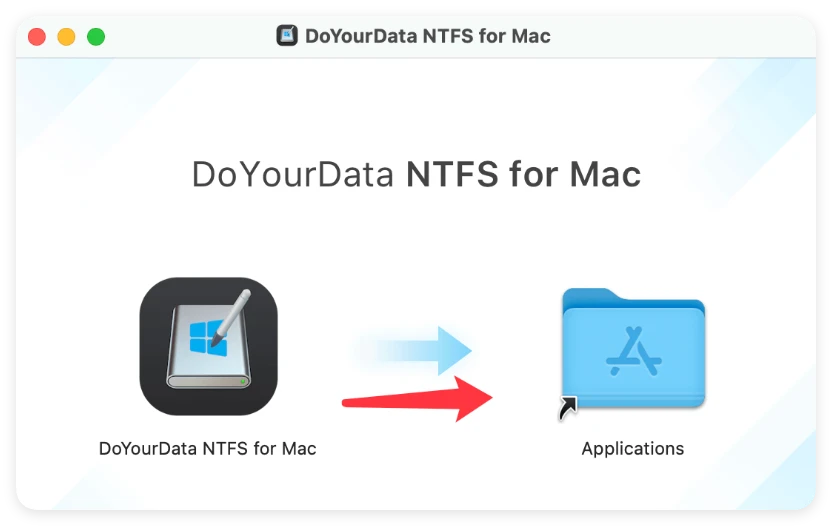
Step 1: Download and install DoYourData NTFS for Mac on your computer. Follow the straightforward setup wizard instructions.
Step 2: Launch the application. Because macOS 27 Golden Gate values privacy, you might be asked to grant the app permission to manage external disks in your System Settings.
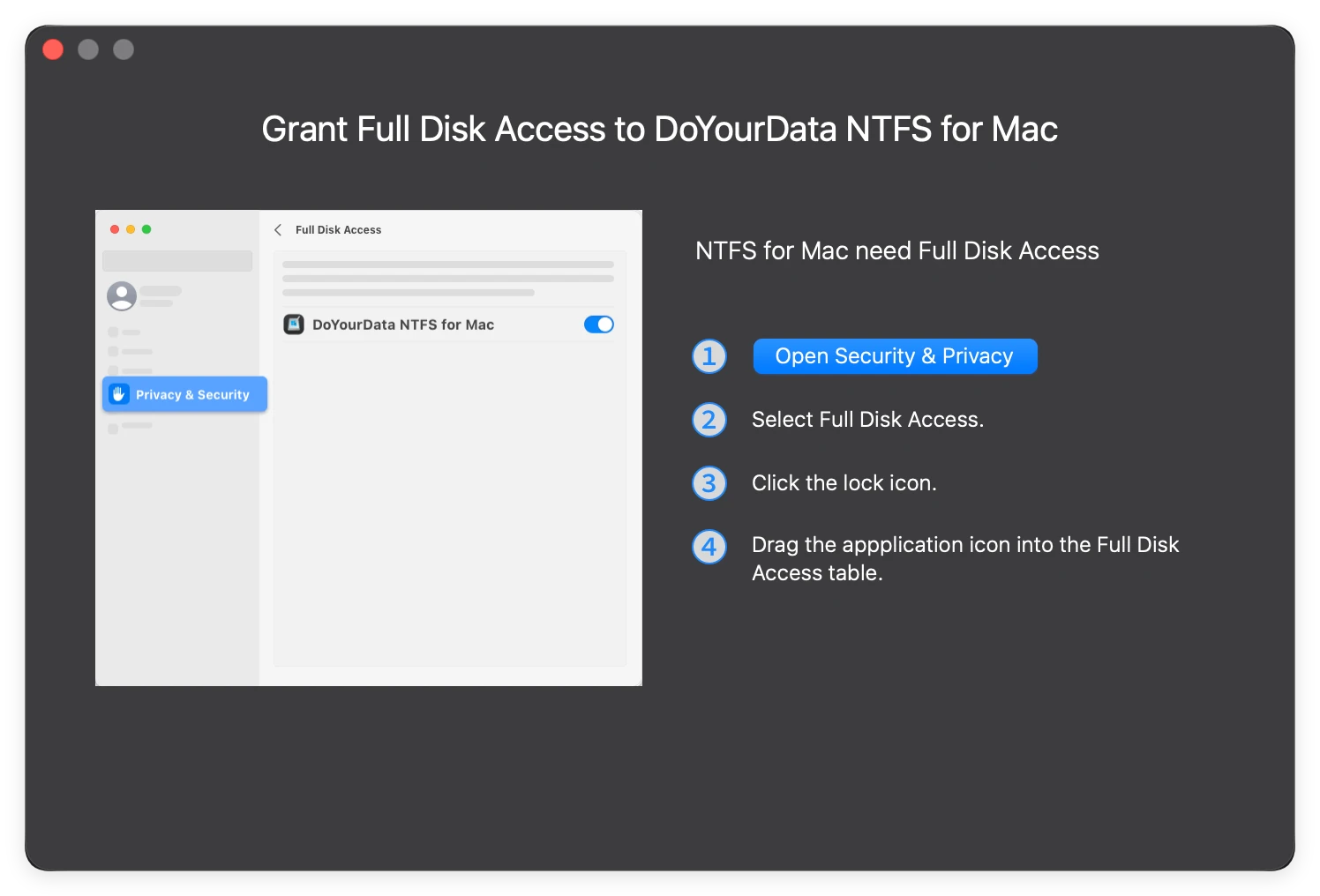
💡 Tip: To make sure the NTFS driver for Mac working on Mac, you need to change the Security Policy in Recovery mode. For more information, refer to the online user guide.
Step 3: Connect your Windows NTFS hard drive or flash drive into your Mac's USB port. The first time, you need to select the NTFS drive and click Enable Writable button.
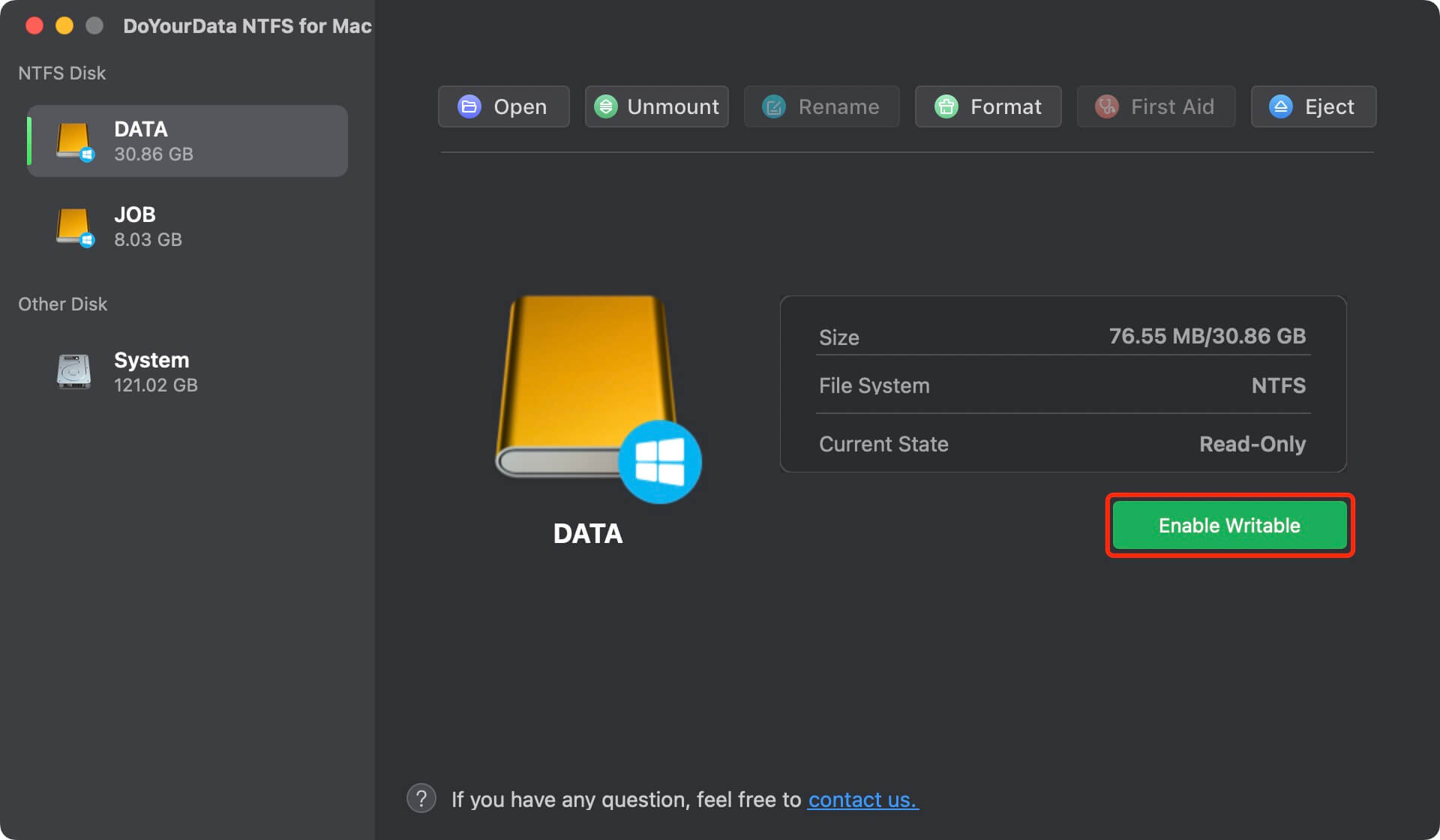
Step 4: DoYourData will automatically detect the drive and mount it in read-write mode. Open Finder, and you are ready to write data to your NTFS drive on Mac without limitation!
Comparing the Alternatives
While exploring your options for the best NTFS for Mac for macOS 27 Golden Gate, you might run across other choices. Let us see how they stack up against a professional utility like DoYourData:
Free Open-Source Tools: Programs like Mounty or old versions of FUSE are popular because they do not cost anything. However, they frequently break when Apple updates macOS. Relying on them on a major build like macOS Golden Gate often causes unexpected system freeze-ups and potential data loss.
Manual Terminal Commands: You can theoretically use the Mac Terminal to activate hidden experimental write features. But Apple keeps these features hidden because they are highly unstable. One tiny typo in the Terminal can wipe your drive entirely.
Formatted Partitioning: Some tech blogs suggest splitting your drive into two formats (like exFAT and NTFS). While this works, it requires you to wipe your drive completely first, which is incredibly inconvenient if you already have hundreds of gigabytes of files stored on it.
Conclusion:
Upgrading your Mac should always feel like an exciting step forward, not a step backward for your productivity. Do not let minor platform differences stand in the way of your daily work or personal files.
By choosing DoYourData NTFS for Mac, you are investing in absolute peace of mind. Your external drives will connect instantly, write beautifully, and transfer data safely. Download DoYourData today and unlock the true, unrestricted power of your macOS 27 Golden Gate workstation!
FAQs about NTFS for macOS 27 Golden Gate
DoYourData NTFS for Mac
DoYourData NTFS for Mac is a safe, powerful and easy-to-use NTFS for Mac tool. It allows macOS to read & write files on NTFS drives without any limitation. It is also a comprehensive disk management tool for Mac to mount/unmount disk, format disk, repair disk, read-write disk...on Mac.
Written & Updated by Justin Kenny
Justin Kenny is a writer & editor of DoYourData. He joined DoYourData in 2016 and focuses on writing articles about Windows data recovery, Mac data recovery, external device data recovery, hard drive clone, data erasure, Mac cleanup, computer issue fixes, etc. He is a super fan of Apple devices and is big on testing new digital device and system utility software.