How to Uninstall Applications on macOS 27 Golden Gate: A Complete Guide
To uninstall applications on macOS 27 Golden Gate, you can drag them from Finder to Trash, delete them via Launchpad, or use native uninstallers. However, to completely remove hidden leftovers like caches, support files, and system logs, using a dedicated Mac cleaning tool like DoYourData MacClean360 for Mac is the fastest and safest method. It scans and deletes all related files with a single click, keeping your Mac clean and fast.
 Updated by Ricky Lin on July 23, 2026
Quick Navigation:
- Why Dragging Apps to Trash Isn't Enough
- 4 Methods to Uninstall Applications on macOS 27
- FAQs about Uninstalling Apps on macOS Golden Gate
- Conclusion
Upgrading to macOS 27 Golden Gate brings an impressive array of new productivity features, sleek visual updates, and enhanced system security. However, as you explore new software and install different tools, your storage space can quickly fill up. Knowing how to properly uninstall applications on macOS 27 Golden Gate is essential for keeping your Mac running at peak performance.
Many Mac users assume that simply dragging an app icon into the Trash completely deletes the application. Unfortunately, that is rarely the case. Most Mac applications create hidden support files, preferences, cache files, and system logs spread across deep system folders. Over time, these orphaned files clutter your hard drive and degrade system speed.
In this step-by-step guide, we will walk you through five effective methods to remove apps from your Mac—ranging from standard built-in tools to powerful uninstallation software like DoYourData MacClean360 for Mac.
Why Dragging Apps to Trash Isn't Enough
When you install an application on macOS 27 Golden Gate, the operating system creates an application package (.app) in your Applications folder. However, as soon as you open and use the software, it generates additional files across several system directories:
- Application Support Files: Stores user configurations, license keys, and temporary saved states.
- Caches & Temporary Files: Temporary data stored to speed up app loading, which can accumulate to several gigabytes over time.
- Preferences: Saved settings and user customizations stored in '.plist' files.
- Launch Daemons & Agents: Background processes that run automatically even when the main app is closed.
When you move an app to the Trash, only the primary executable bundle in the Applications folder is removed. All those secondary files remain untouched on your storage drive. To keep your Mac running smoothly, you need a reliable way to clean up both the app and its leftover files.
4 Methods to Uninstall Applications on macOS 27
Method 1: The Best & Most Complete Way – DoYourData MacClean360 for Mac
If you want a hassle-free solution that guarantees 100% complete app uninstallation without hunting through hidden system folders, DoYourData MacClean360 for Mac is your best choice.
MacClean360 - Best Mac Cleaner
- Uninstall apps completely from macOS 27 Golden Gate.
- All-in-one cleanup and optimization tool for Mac.
- 100% safe and easy-to-use cleanup software.
DoYourData MacClean360 is an all-in-one Mac cleanup and optimization suite designed specifically for macOS. Its built-in App Uninstaller tool automatically scans your entire system, identifies every application, and uncovers all associated leftover files (caches, logs, preference files, and support data). With just a single click, it completely wipes the app and its hidden footprints.
Steps to Uninstall Apps Completely with MacClean360:
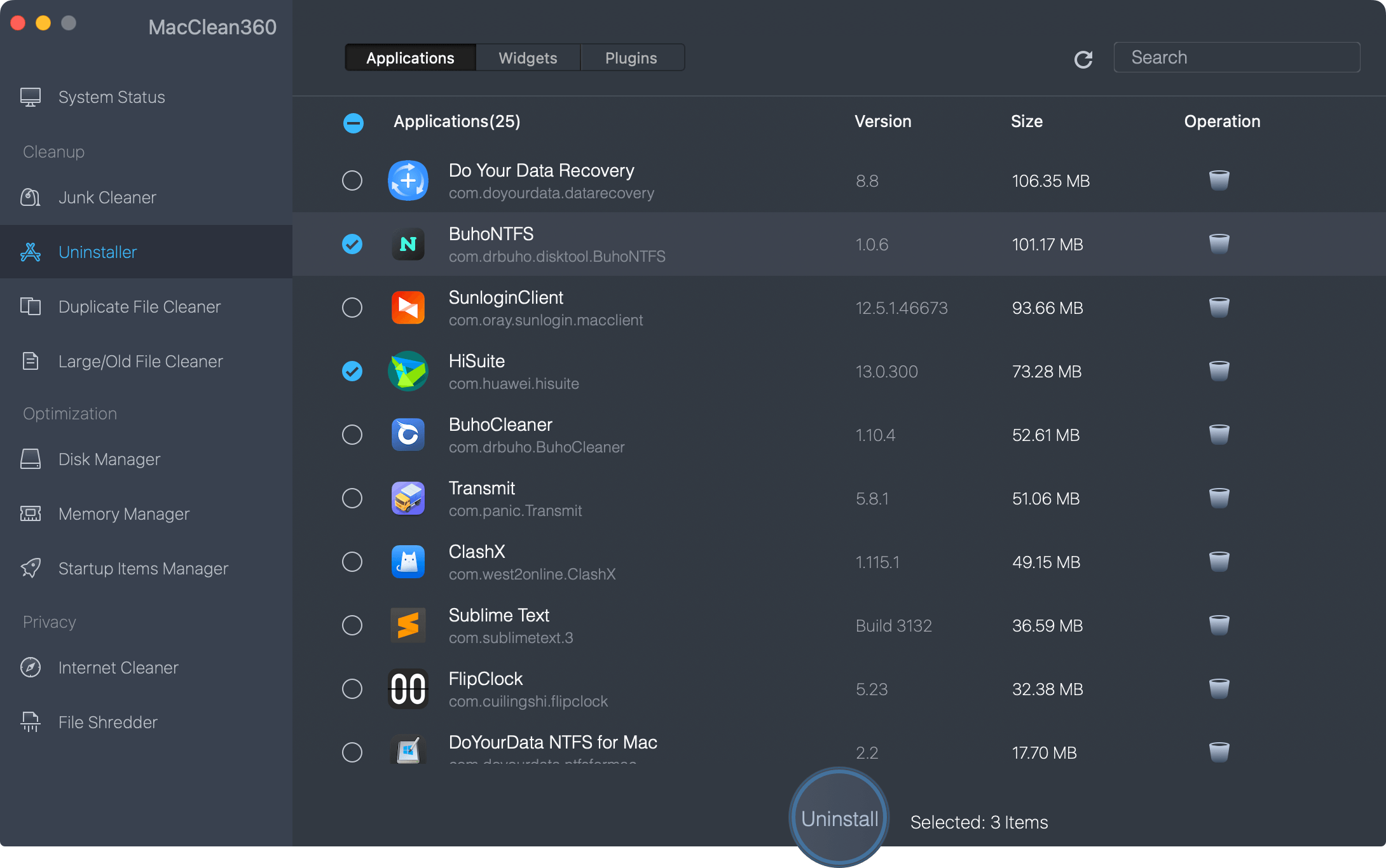
Step 1: launch the application on your macOS 27 Golden Gate system. In the left sidebar menu, click on the Uninstaller tab.
Step 2: Select the application you wish to remove from the list. You will see a detailed list of all connected cache files, preference files, and support folders.
Step 3: Click the Uninstall button. MacClean360 will safely remove the app along with all its leftover files instantly.
Additional Features of DoYourData MacClean360
Beyond complete application uninstallation, DoYourData MacClean360 serves as a comprehensive system optimizer for macOS 27 Golden Gate. Key capabilities include:
- Junk File Cleaner: Scans and removes system caches, user logs, application junk, broken downloads, and Xcode junk to recover valuable storage space.
- Duplicate Finder: Scans your hard drive for duplicate files, photos, videos, and music files so you can safely delete extras.
- Large & Old File Remover: Quickly identifies oversized files and old downloads taking up space on your Mac.
- Memory Manager: Frees up RAM memory with a single click to boost performance when running heavy applications.
- Startup & Extension Manager: Easily manage startup items and browser extensions to speed up Mac boot time.
Method 2: How to Uninstall Applications via Finder & Trash
The standard manual method for removing third-party apps on macOS 27 Golden Gate is through Finder.
Step 1: Open Finder on your Mac.
Step 2: Click on Applications in the left sidebar.
Step 3: Locate the application you want to remove.
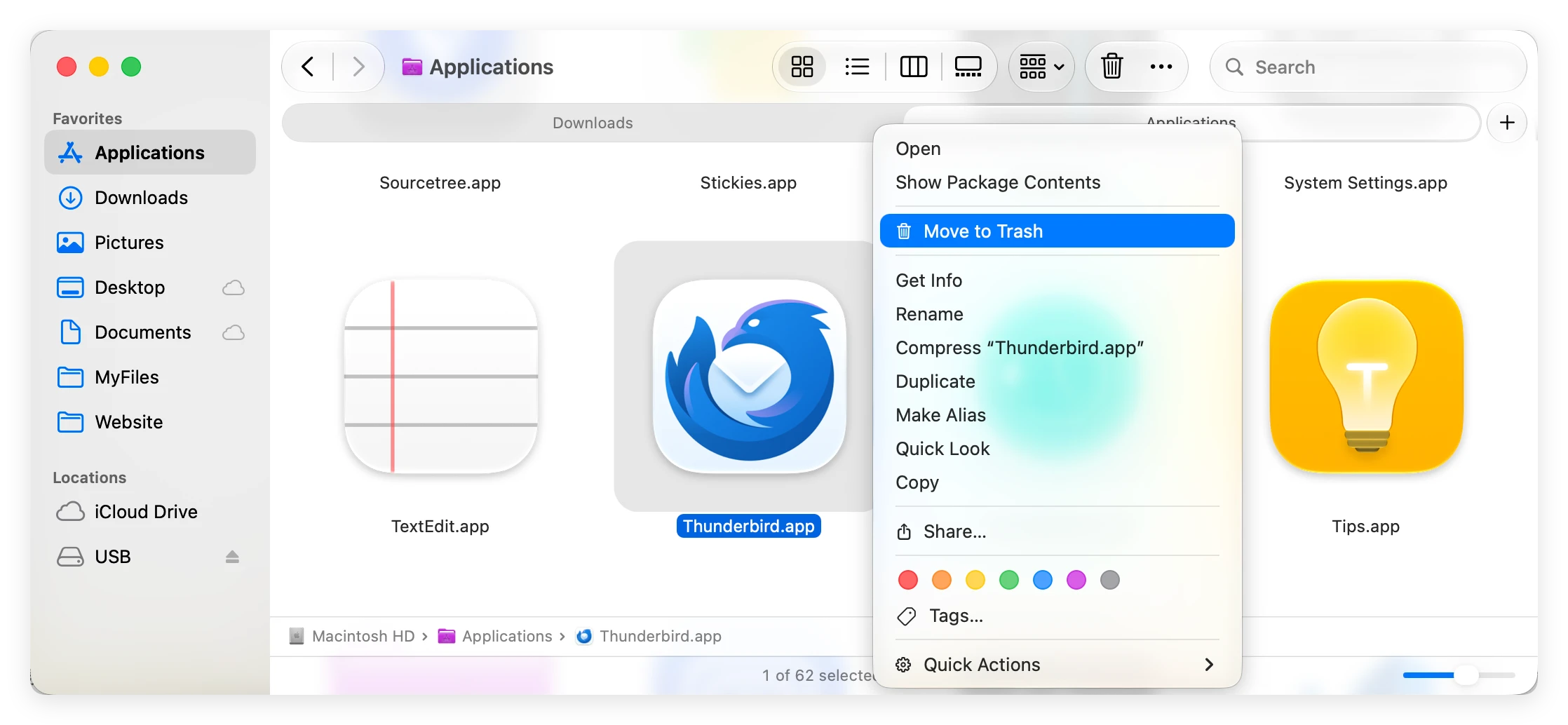
Step 4: Drag the application icon directly into the Trash on your Dock, or right-click the app and choose Move to Trash (Command + Delete).
Step 5: Right-click the Trash icon on your Dock and select Empty Trash to permanently delete the application bundle.
Method 3: How to Manually Clean Up Hidden Leftover Files
If you used Finder or Launchpad to remove an application, you should manually delete its leftover preference and support files to ensure your storage stays clutter-free.
Step 1: Open Finder, click Go in the top menu bar, and choose Go to Folder (or press Shift + Command + G).
Step 2: Type '~/Library' in the search field and press Enter.
Step 3: Search for folders or files matching the name of the deleted application in the following key directories:
- ~/Library/Application Support/ - Look for folders named after the application or developer.
- ~/Library/Caches/ - Look for cache folders related to the app.
- ~/Library/Preferences/ - Look for '.plist' files matching 'com.developer.appname.plist'.
- ~/Library/Logs/ - Look for error and performance log files associated with the app.
- ~/Library/Containers/ - Look for sandboxed app data containers.
Step 4: Move any matching files or folders to the Trash and empty the Trash.
Warning: Be very careful when deleting files in the '~/Library' folder. Accidentally deleting system critical files could cause stability issues on macOS 27 Golden Gate. If you are uncertain about a file, it is much safer to use DoYourData MacClean360.
Method 4: Using Built-in Native Uninstallers
Certain large or complex software packages—such as Adobe Creative Cloud, Microsoft Office suite, audio plugins, or antivirus programs—come with their own dedicated uninstallers.
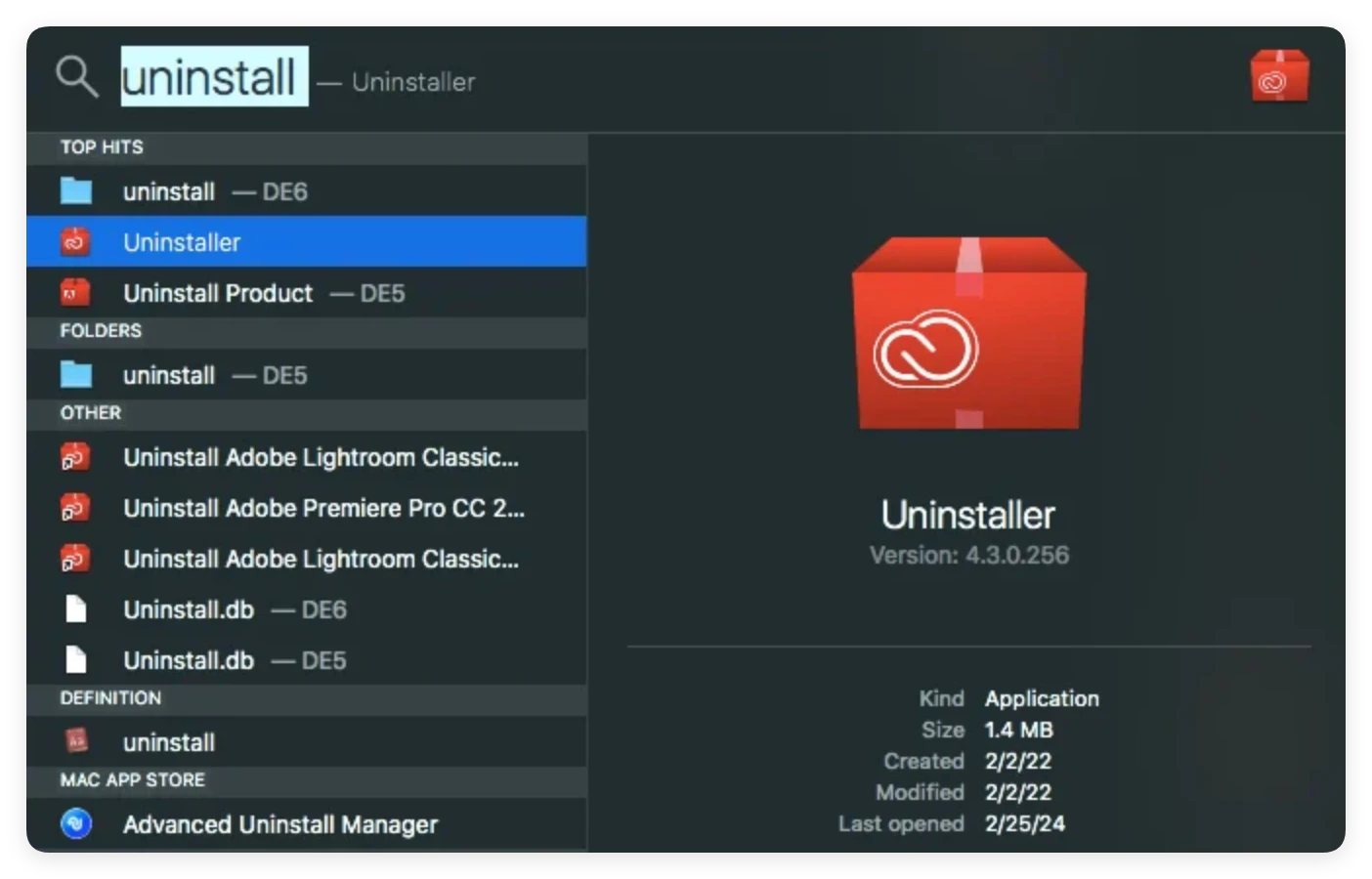
To check if an app has a built-in uninstaller, open Finder > Applications and open the app's folder. If you see an icon named Uninstall [App Name] or [App Name] Uninstaller, double-click that file and follow the on-screen prompts. These native tools are designed to remove specialized background services installed by complex programs.
FAQs about Uninstalling Apps on macOS Golden Gate
Conclusion
Knowing how to uninstall applications on macOS 27 Golden Gate is a fundamental skill for keeping your Mac clean, fast, and organized. While standard methods like Launchpad, Finder, and manual Library cleanup work for basic tasks, they often leave behind unwanted residual files or carry the risk of accidental file deletion.
For a fast, safe, and thorough uninstallation process, DoYourData MacClean360 for Mac is the ultimate solution. It not only removes applications completely without leaving leftover files but also provides powerful system cleaning tools to optimize your Mac's storage and speed. Download DoYourData MacClean360 today and give your Mac a clean, fresh start!
MacClean360
All-in-one Mac maintenance tool to clean up all types of junk data by 1 click, remove old/duplicate files, uninstall unwanted apps, clean up browser junk data, manage disk, permanently shred files, speed up slow Mac, manage startup items on Mac.
Written & Updated by Ricky Lin
Ricky Lin is an senior editor of DoYourData who lives in Adelaide, Australia. He is interested in writing technology articles related with data recovery, computer issue fixes, disk clone, iPhone data recovery, video edit, Mac optimization, etc. He Joined DoYourData in 2019 and have written 500+ articles to help both Windows users and Mac users to solve data or computer problems.