How to Completely Sanitize Local Storage on Used MacBook Air Before Trading
Trading in your used MacBook Air is a great way to offset the cost of upgrading to a newer Apple Silicon model. However, simply using Apple's built-in reset feature leaves your sensitive files vulnerable to data recovery tools. DoYourData Super Eraser for Mac can help you make the data gone forever and unrecoverable.
 Updated by Shirly Chen on Novmenber 5, 2026
Quick Navigation:
- Why Standard Resets Are Not Enough Before Trading
- Understanding SSD Storage and macOS Sanitization Challenges
- Essential Checklist Before Wiping Your MacBook Air
- DoYourData Super Eraser for Mac: Military-Grade Storage Sanitization
- Guide: Sanitize Local Storage on MacBook Air Before Trading
- FAQs about Sanitizing Local Storage on MacBook Air
- Conclusion
To guarantee complete data privacy before handing over your laptop, you need a multi-pass military-grade erasure utility. This guide walks you through the steps to completely sanitize local storage on used MacBook Air before trading using DoYourData Super Eraser for Mac. Learn how to perform essential pre-trade preparations, bypass APFS wear-leveling pitfalls, and securely wipe your SSD so your personal information remains 100% unrecoverable.
Why Standard Resets Are Not Enough Before Trading
Trading in or selling a used MacBook Air is a common routine for Apple enthusiasts. Whether you are trading via Apple Trade In, Best Buy, eBay, or selling directly to a third party, wiping your device is a non-negotiable security requirement.
Most users assume that choosing 'Erase All Content and Settings' in macOS or executing a basic factory reset in Disk Utility permanently destroys their data. Unfortunately, that assumption is incorrect and dangerous.
Modern macOS file systems (APFS and HFS+) prioritize speed and drive longevity. When you execute a standard file deletion or quick disk format, macOS merely removes the directory indexing pointers linking to your files. The actual data blocks containing your private photos, financial records, saved passwords, and confidential emails remain intact on your SSD until new data overwrites them.
Anyone equipped with basic, consumer-grade data recovery software can easily scan the unallocated space on your traded MacBook Air and restore your sensitive documents. To protect your identity, credit security, and personal privacy, you must completely sanitize local storage on used MacBook Air before trading using multi-pass binary overwriting algorithms.
Comparison: Mac Pre-Trade Sanitization Methods
Before choosing a data erasure method for your MacBook Air, compare the security levels, recovery risks, and compliance standards of each approach:
| Sanitization Method | Security Level | Data Recovery Risk | Best Use Case |
|---|---|---|---|
| Emptying Mac Trash | Zero Protection | Extremely High (Recoverable in minutes) | Daily file cleanup only |
| macOS Erase All Content & Settings | Basic Security | Moderate (Residual sectors can persist) | Quick reset for family hand-me-downs |
| Disk Utility Format (Quick) | Low Security | High (Index cleared, data blocks intact) | Re-installing macOS for personal use |
| DoYourData Super Eraser (DoD 5220.22-M) | Military-Grade Certified | Zero Risk (100% Unrecoverable) | Trading in, selling, or recycling MacBook Air |
Understanding SSD Storage and macOS Sanitization Challenges
Sanitizing an SSD on a MacBook Air involves distinct technical mechanics compared to traditional magnetic hard drives (HDDs). Understanding these challenges helps clarify why military-grade wiping software is essential.
APFS Copy-on-Write and SSD Wear-Leveling
Apple introduced APFS (Apple File System) specifically to optimize flash storage performance. APFS utilizes a Copy-on-Write (CoW) design alongside controller-level wear-leveling algorithms. Wear-leveling spreads data writes evenly across all NAND flash memory blocks to prevent hardware degradation.
If a basic utility attempts to overwrite a specific file in place, the SSD controller redirects the new data to a different flash block. As a result, the original data block remains untouched in unallocated space, accessible to forensic recovery tools.
System Integrity Protection (SIP) and Apple Silicon Security
Modern MacBook Air models equipped with Apple Silicon and T2 security chips feature hardware-based FileVault encryption. While FileVault encrypts active files, unallocated disk sectors and residual temporary cash files can still harbour recoverable file fragments if key management flags or cache tables persist.
Furthermore, macOS System Integrity Protection (SIP) restricts low-level disk access for unverified third-party software. To achieve total disk sanitization, you need a specialized, Apple-certified data wiping tool that integrates cleanly with APFS and issues controller-level TRIM commands.
Essential Checklist Before Wiping Your MacBook Air
Before launching the storage sanitization process, perform these prerequisite steps to prevent data loss and ensure a hassle-free trade-in:
- Create a Full Time Machine Backup: Back up all your personal documents, photos, and project files to Time Machine or an external hard drive.
- Sign Out of iCloud and Find My: Open System Settings > Apple ID, click Sign Out, and turn off Find My Mac to unbind your Apple ID from the hardware.
- Sign Out of iMessage & Apple Music: Deauthorize your computer in Music/TV apps and sign out of Messages to prevent iMessage synchronization on your new device.
- Unpair Bluetooth Accessories: Unpair any connected wireless headphones, mice, or keyboards so they do not auto-connect when the buyer tests the laptop nearby.
- Reset NVRAM/PRAM (Intel Macs): If your MacBook Air has an Intel processor with a T2 chip, reset NVRAM/PRAM to clear temporary hardware settings.
DoYourData Super Eraser for Mac: Military-Grade Storage Sanitization
To completely sanitize local storage on used MacBook Air before trading, DoYourData Super Eraser for Mac provides certified, military-grade data destruction. It overwrites target data using internationally recognized sanitization algorithms, ensuring that erased files cannot be recovered by any software or hardware recovery tools.
Supported Sanitization Standards
- U.S. DoD 5220.22-M (3-Pass): Overwrites data in 3 sequential passes using binary zeroes, binary ones, and random character patterns.
- U.S. DoD 5220.22-M (ECE) (7-Pass): An enhanced 7-pass algorithm for high-security commercial and enterprise requirements.
- NIST SP 800-88 Rev 1: Modern storage sanitization guidelines tailored for solid-state media.
- Peter Gutmann Standard (35-Pass): Executes 35 passes of deep overwriting for ultimate data security.
Flexible Erasing Modes
DoYourData Super Eraser for Mac offers three tailored sanitization modes depending on your specific trade-in setup:
- Wipe Files/Folders: Selectively shred individual sensitive files, financial records, or confidential folders before executing a general OS clean-up.
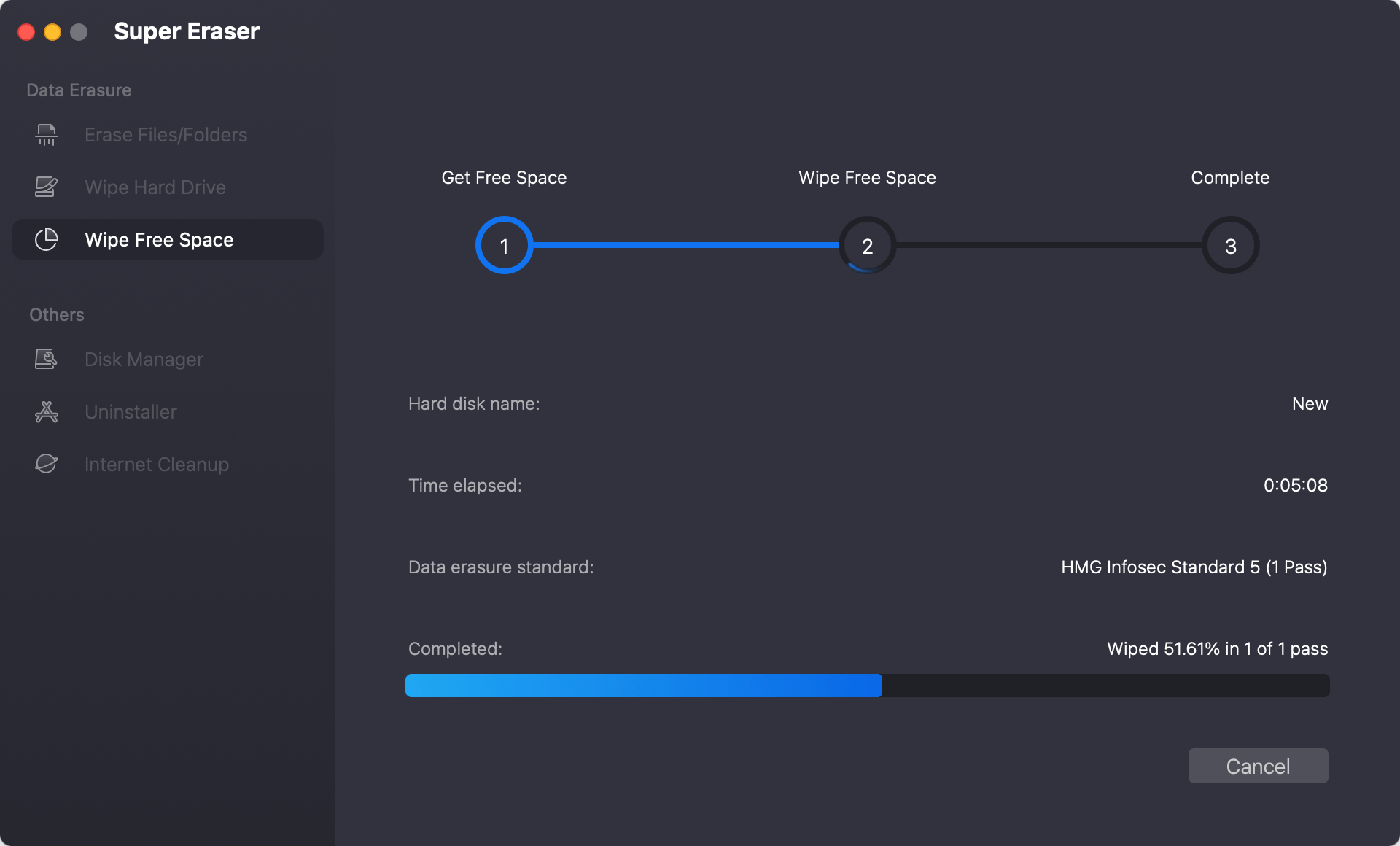
- Wipe Free Space: Sanitize the unallocated free space on your MacBook Air SSD. This permanently overwrites previously deleted files, temp files, and system cache residues without affecting your installed macOS operating system.
- Wipe Hard Drive: Permanently sanitize entire external drives, USB flash drives, or secondary storage volumes before trading them in alongside your laptop.
Guide: Sanitize Local Storage on MacBook Air Before Trading
Follow these clear steps to permanently sanitize your MacBook Air storage prior to trade-in:
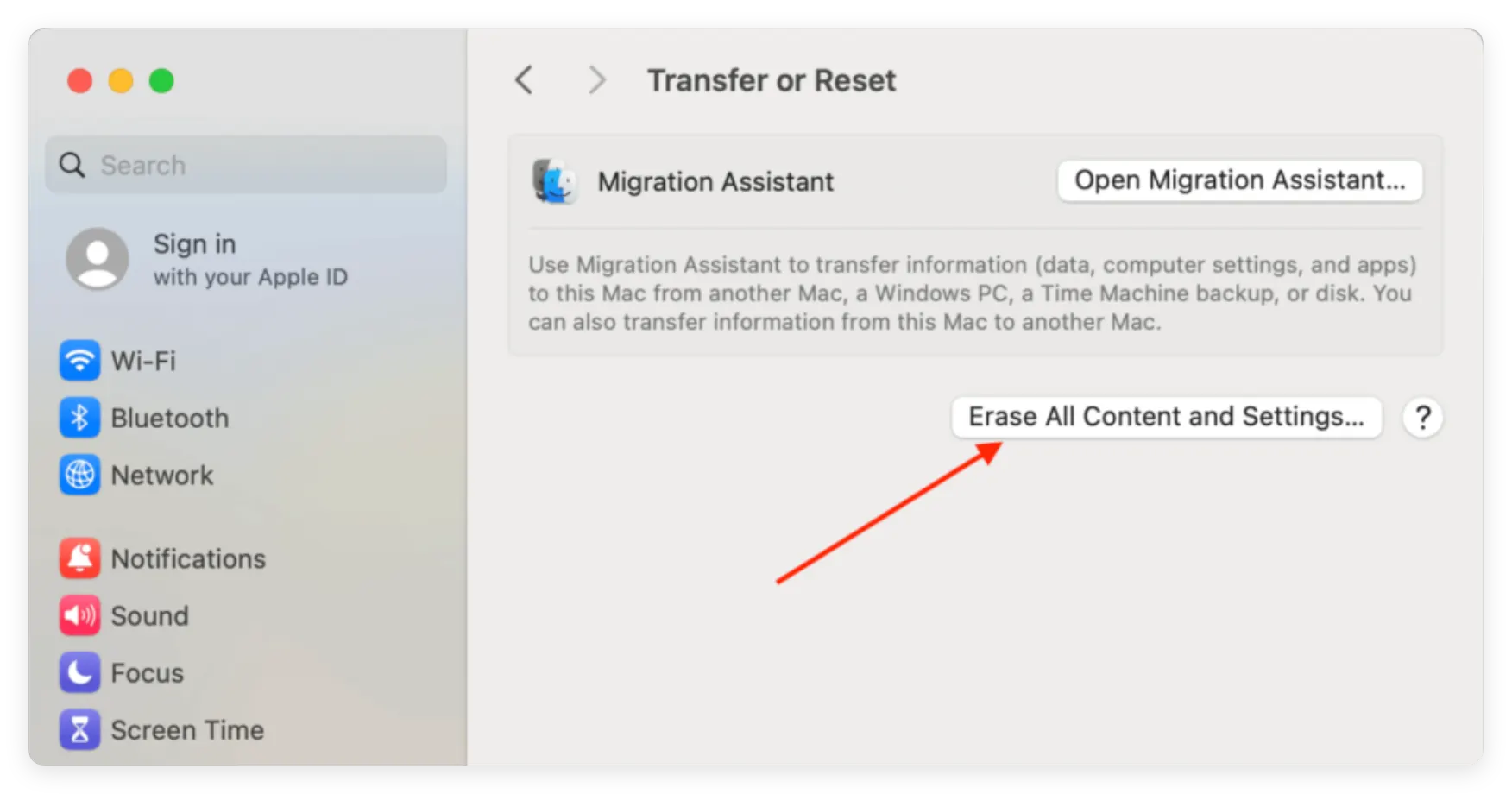
Step 1: Perform Final macOS Factory Reset. After free space sanitization finishes, use macOS System Settings to execute 'Erase All Content and Settings' (or boot into macOS Recovery and erase the APFS volume in Disk Utility). This resets the operating system to factory defaults while ensuring all personal files are completely removed.
Step 2: Download and Install DoYourData Super Eraser. Download DoYourData Super Eraser for Mac first. Open the downloaded file and drag the app into your Applications folder.
DoYourData Super Eraser for Mac
- Most reliable data erasure software for Mac.
- Support certified data erasure algorithms.
- Three modes for permanently data wiping.
Step 3: Select 'Wipe Free Space' Mode. Select 'Wipe Free Space' from the main interface. Choose your primary Mac startup disk (Macintosh HD or APFS volume). This mode targetedly overwrites all unallocated storage blocks where deleted personal files reside.
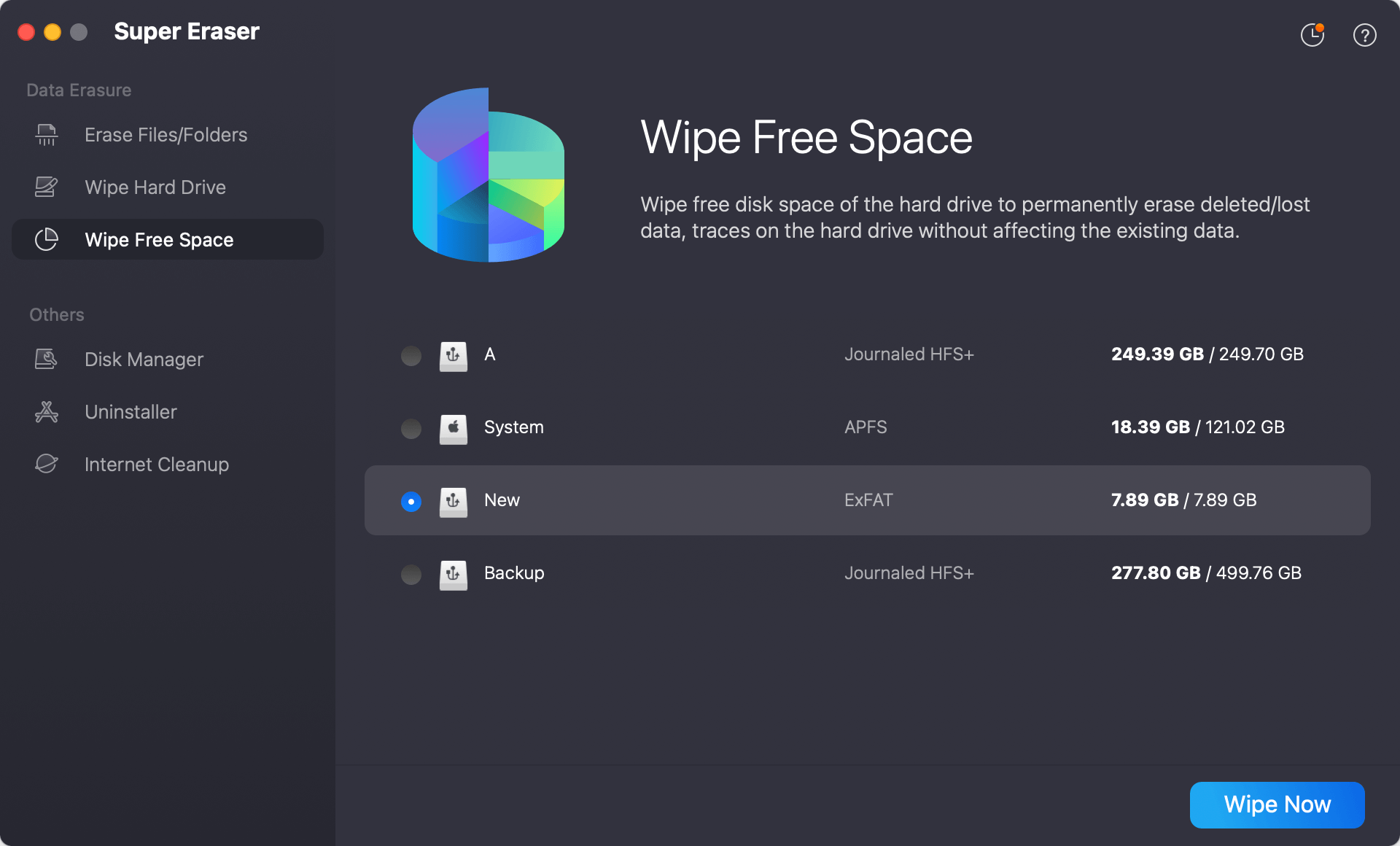
Step 4: Choose Your Wiping Standard. Click the 'Wipe Now' button and select your preferred data erasing standard.
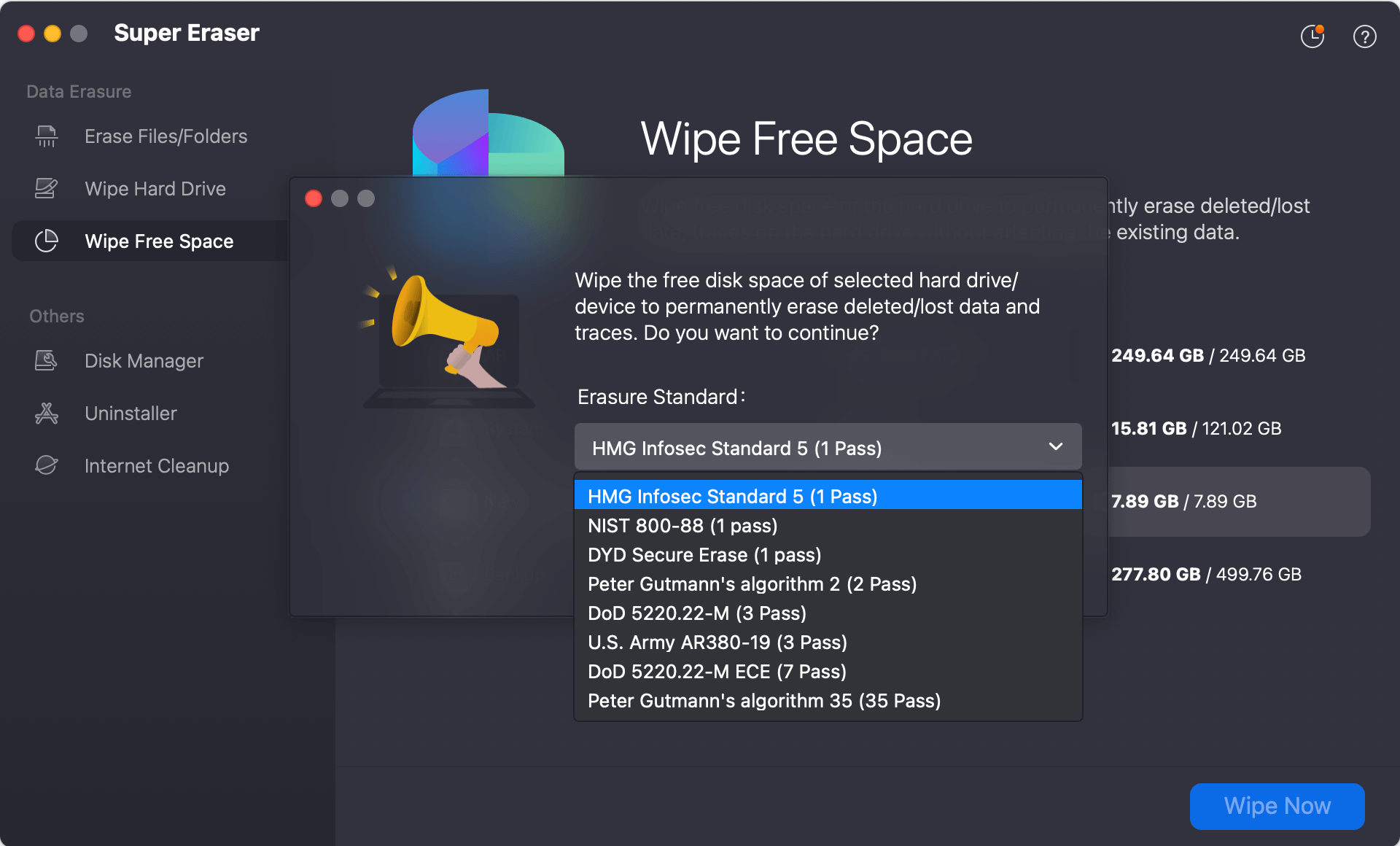
Step 5: Execute Storage Sanitization. Start wiping process by clicking the 'Continue button. DoYourData Super Eraser will execute multi-pass overwriting across the free space, filling erased sectors with random pattern combinations.
💡 Important Reminder: Data sanitized by DoYourData Super Eraser is permanently destroyed. Neither software tools nor professional data recovery laboratories can retrieve your erased files. Always confirm your backups before wiping.
FAQs about Sanitizing Local Storage on MacBook Air
Conclusion:
Trading in your MacBook Air is a convenient way to upgrade your tech, but protecting your digital privacy must be your top priority. Standard deletion methods and quick factory resets leave sensitive files vulnerable in unallocated SSD storage blocks.
By following this guide to completely sanitize local storage on used MacBook Air before trading with DoYourData Super Eraser for Mac, you can rest easy knowing your private files, financial records, and personal identity are permanently secure. Download DoYourData Super Eraser for Mac today and prepare your Mac for trade-in with complete confidence.
DoYourData Super Eraser for Mac
DoYourData Super Eraser for Mac is a 100% safe, powerful and easy-to-use data erasure program. It offers certified data erasure standards including Peter Gutmann, U.S. Army AR380-19, DoD 5220.22-M ECE to permanently erase data from Macs and external devices, making data recovery be impossible.
Written & Updated by Shirly Chen
Shirly Chen has been writing data recovery, data erasure articles for DoYourData over 4 years. She has been working as a professional website content writer & editor for quite a long time. She also writes articles about disk clone, Mac optimization, disk backup, etc.