Complete Guide: Fix USB Drive Is Not Recognized on macOS 27 Golden Gate
If USB drive is not recognized on macOS 27 Golden Gate, it's necessary to check the connection and system settings first. If it doesn't work, it's better to recover important data with Do Your Data Recovery for Mac before advanced fixes.
 Ricky Lin updated on September 23, 2026
Quick Navigation:
- Why USB Drive Not Recognized on macOS Golden Gate
- Basic Quick Fixes (Non-Destructive Checks)
- Recover Important Data Before Advanced Fixes [Optional]
- Advanced Fixes to Repair the USB Drive Not Recognized
- FAQs about USB Drive Not Recognized on macOS 27
- Final Conclusion
Upgrading to macOS 27 Golden Gate brings exciting system improvements, tighter security controls, and enhanced performance. However, updating your Mac operating system can sometimes trigger unexpected glitches with external storage devices.
One common issue users encounter after upgrading is that their flash drive or external hard drive stops showing up. Plug in your external disk, and nothing happens—no desktop icon appears, and Finder remains completely empty.

If you are struggling to fix USB drive is not recognized on macOS 27 Golden Gate, don't panic. In most cases, your files are completely intact. This step-by-step guide walks you through basic troubleshooting, data recovery precautions, and advanced repairs to get your drive back online quickly and safely.
Why USB Drive Not Recognized on macOS Golden Gate
Understanding why your Mac fails to detect an external drive helps you choose the right repair method. On macOS 27 Golden Gate, the problem usually stems from one of four main categories:
- Hardware & Cable Issues: Loose connections, damaged cables, faulty USB hubs, or dirty USB ports can interrupt power and data transfer.
- System Settings & Security Permissions: macOS 27 includes updated privacy controls. If permission is denied when prompt pops up, macOS blocks access.
- File System Corruption: Abrupt disconnection without safely ejecting can corrupt the file system directory structure.
- Driver Incompatibility: Outdated or missing driver extensions (KEXTs) after upgrading to macOS 27 Golden Gate.
Basic Quick Fixes (Non-Destructive Checks)
Before trying complex repair steps, start with these simple non-destructive solutions. Often, a minor setting adjustment or loose cable is the sole cause.
Solution 1. Inspect Physical Connections and Hardware
Hardware issues cause a surprising number of recognition failures. Perform a thorough physical check:
- Remove USB Hubs: Disconnect the USB drive and plug it directly into a built-in USB-C or Thunderbolt port on your Mac without using a hub.
- Clean the Ports: Dust and debris inside the port can block electrical pins. Clean ports gently with a dry soft brush.
- Test on Another Computer: Plug the USB drive into another Mac or PC. If another computer detects it, the issue lies in your Mac's software settings.
Solution 2. Check Finder Settings and Desktop Visibility
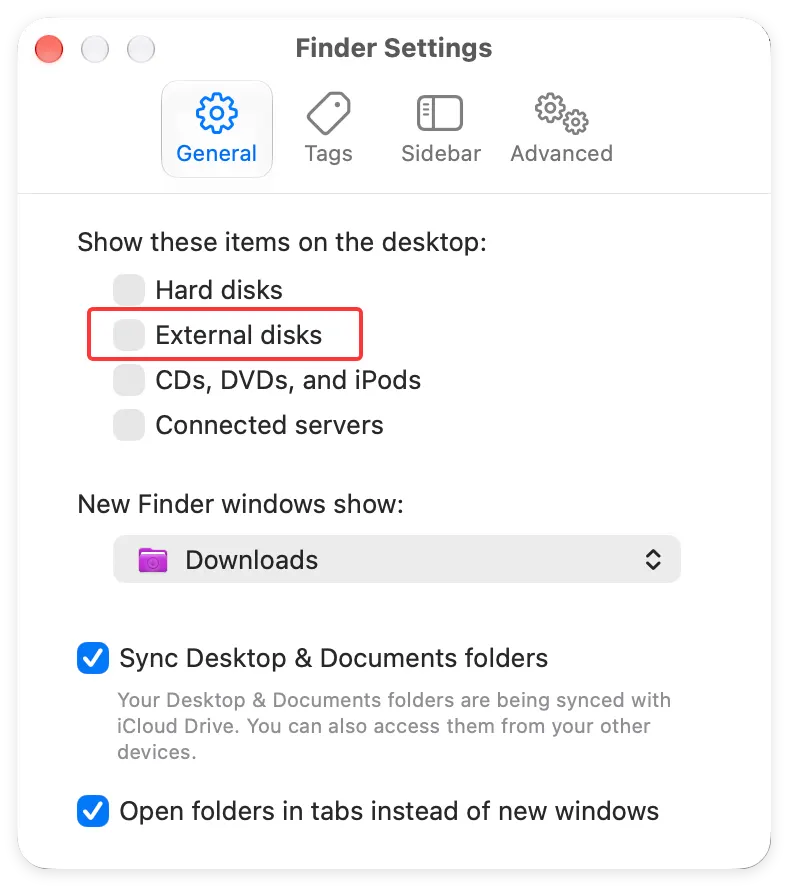
Sometimes macOS 27 Golden Gate detects your USB drive successfully, but system settings prevent it from appearing on screen.
Step 1: Open Finder from your Dock.
Step 2: Click on Finder in the top menu bar and select Settings.
Step 3: Under the General tab, ensure 'External disks' is checked.
Step 4: Switch to the Sidebar tab, and make sure 'External disks' is checked under the Locations category.
Solution 3. Verify macOS 27 Security & Privacy Permissions
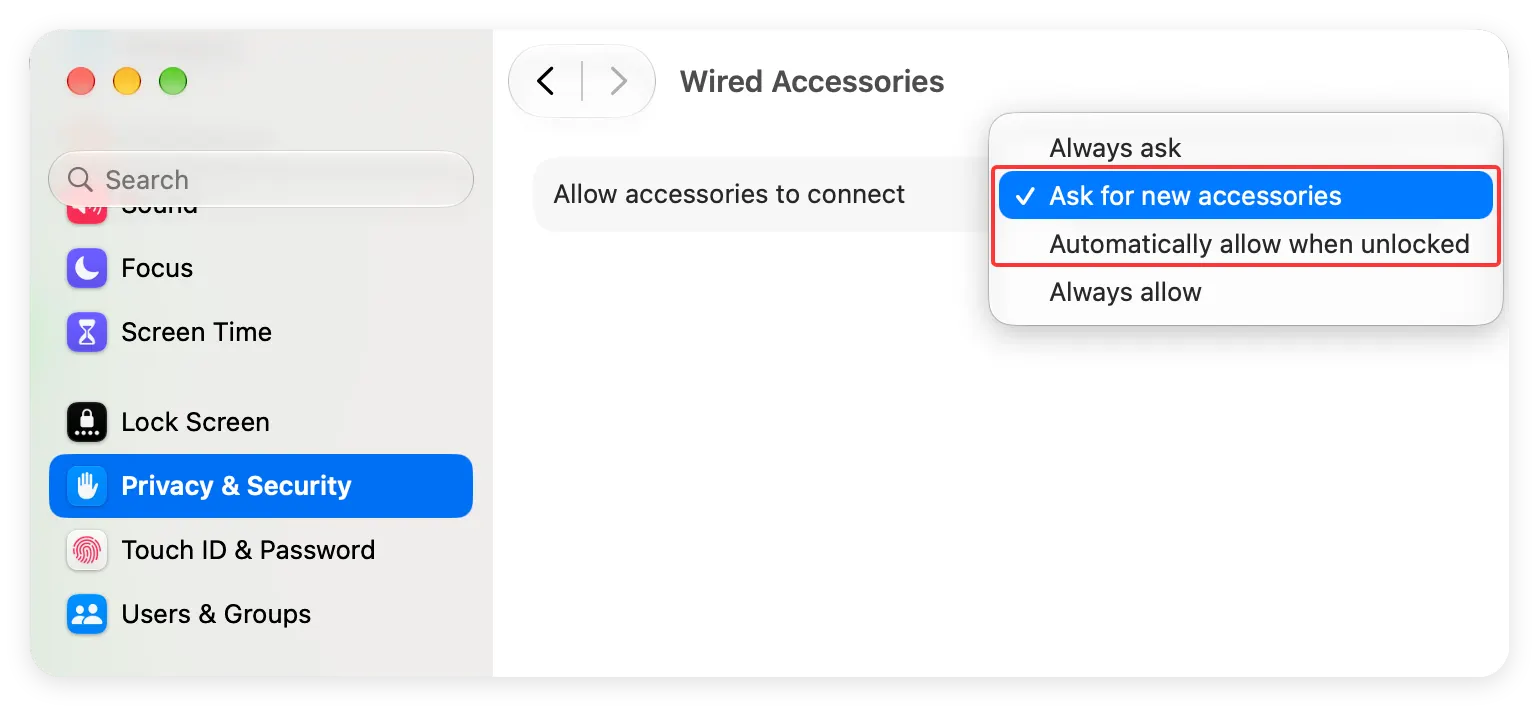
macOS 27 Golden Gate introduced stricter accessories security settings. When you plug in a USB device, macOS asks for permission to connect.
Step 1: Go to System Settings > Privacy & Security.
Step 2: Scroll down to the 'Allow accessories to connect' section.
Step 3: Set the option to 'Ask for New Accessories' or 'Automatically When Unlocked'.
Step 4: Unplug your USB drive and reconnect it, then click 'Allow' on the popup prompt.
Solution 4. Restart Your Mac
A simple system restart flushes temporary background memory caches and reinitializes macOS USB daemon processes. Unplug the drive, restart your Mac from the Apple Menu, and reconnect the drive after logging back in.
Recover Important Data Before Advanced Fixes [Optional]
If basic checks do not resolve the problem, your USB drive may have file system corruption or mounting errors. Advanced repair steps—such as running terminal commands or formatting—can risk overwriting files.
To avoid permanent data loss, always extract your valuable files first using specialized software like Do Your Data Recovery for Mac.
Why Use Do Your Data Recovery for Mac?
Even if Finder fails to mount your USB drive, macOS hardware drivers can often detect the raw storage controller. Do Your Data Recovery for Mac bypasses broken file systems to scan raw sector blocks directly.
- Raw Sector Scanning: Deeply scans corrupted, RAW, unmountable, or formatted USB drives.
- Modern Mac Support: Fully compatible with macOS 27 Golden Gate and Apple Silicon chips.
- File Preview Feature: Allows you to preview photos, videos, documents, and archives before saving.
- Comprehensive File Recovery: Reclaim photos, videos, work documents, and audio tracks effortlessly.
3-Step Guide to Recover Data from Unrecognized USB Drive:
Step 1: Download & Connect - Download and install Do Your Data Recovery for Mac on your computer. Make sure your unrecognized USB drive is connected.
Do Your Data Recovery for Mac
- Recover data effectively from inaccessible external drives.
- Data recovery for deleted, formatted, or other lost data.
- Compatible with latest M chip Mac and macOS system.
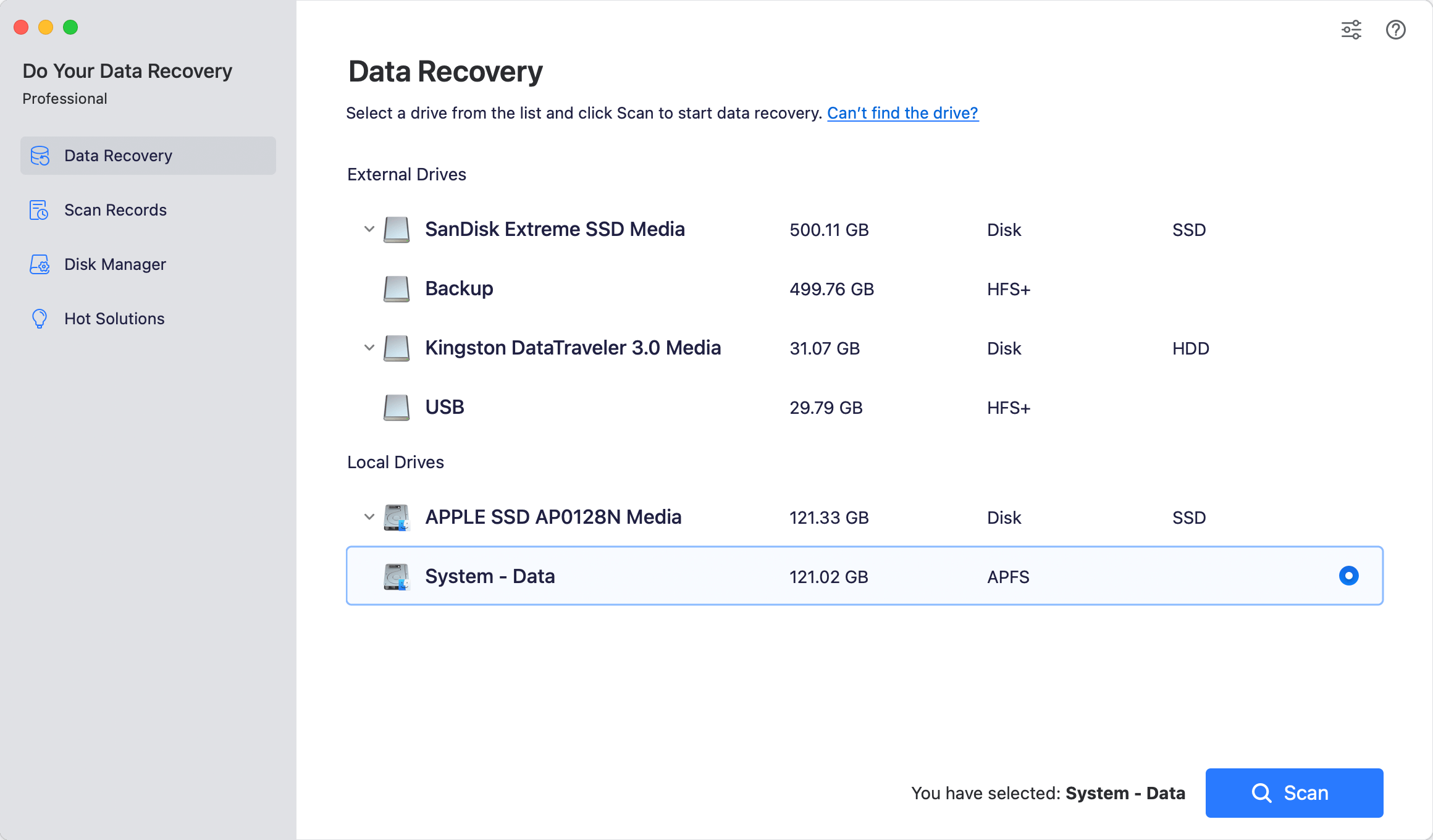
Step 2: Scan the Drive - Launch Do Your Data Recovery. Select your unrecognized USB drive from the drive list and click the Scan button.
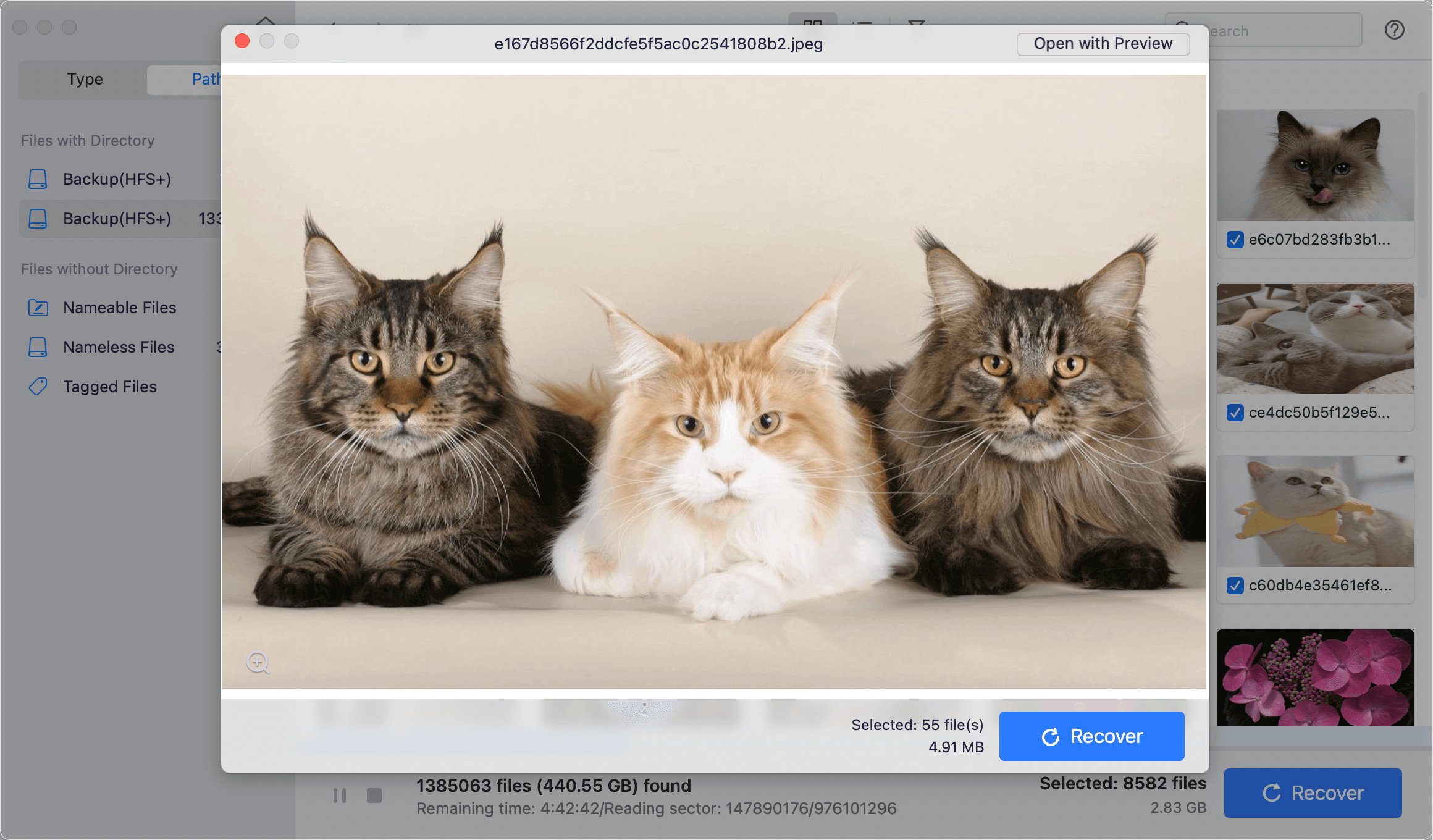
Step 3: Preview & Recover - Once the scan completes, preview your recovered files. Select the files you need and click Recover to save them to a safe location on your Mac's internal drive.
Advanced Fixes to Repair the USB Drive Not Recognized
Now that your important files are safely backed up, you can proceed with advanced troubleshooting methods to fix USB drive is not recognized on macOS 27 Golden Gate.
Fix 1. Use Disk Utility to Mount or Run First Aid
Disk Utility is the built-in storage management tool in macOS.
Step 1: Press Command + Spacebar to open Spotlight, type 'Disk Utility', and press Enter.
Step 2: Click on View in the top-left toolbar and choose Show All Devices.
Step 3: Look for your USB drive in the sidebar. If it appears greyed out, click the Mount button at the top.
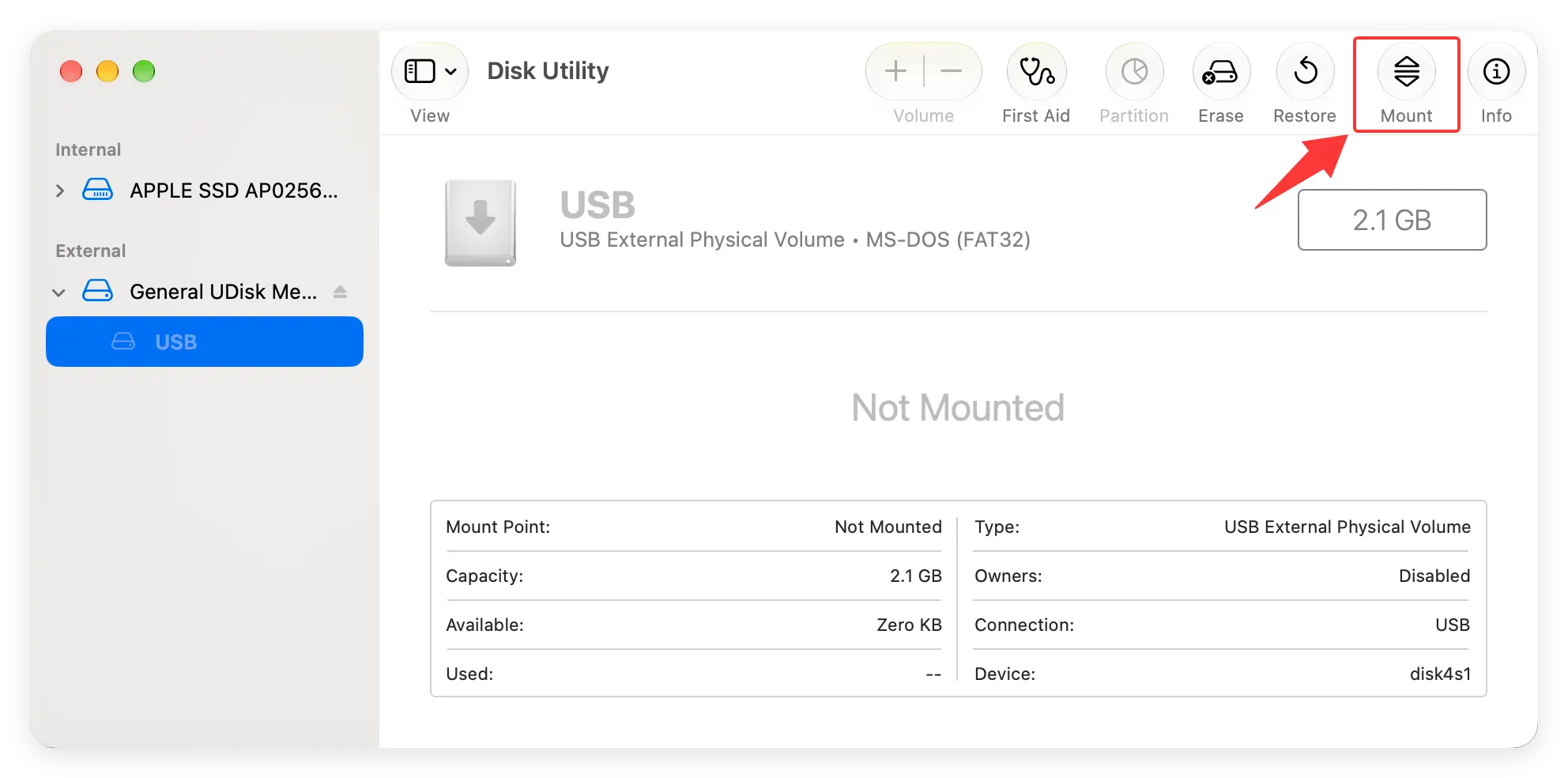
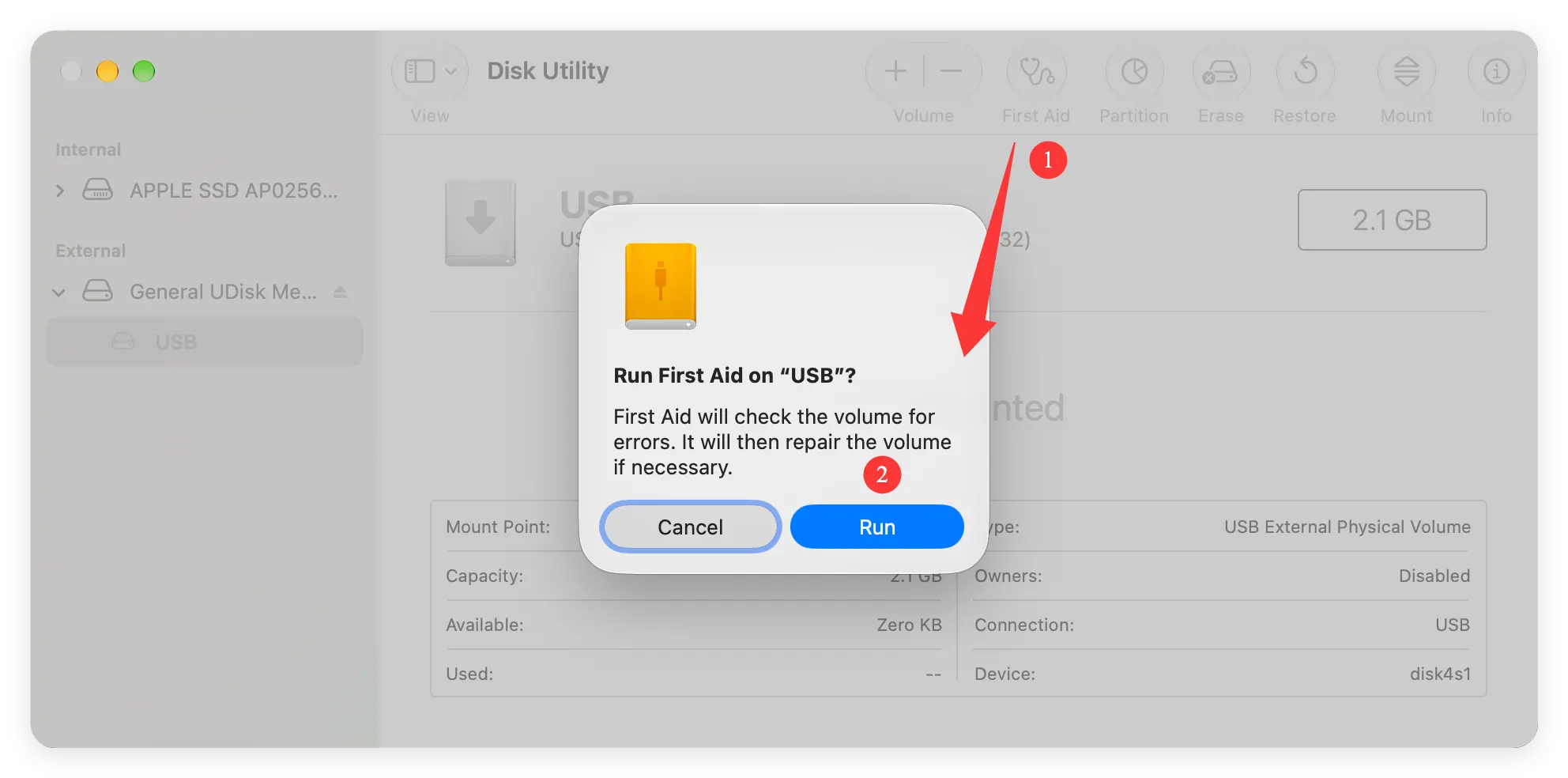
Step 4: If mounting fails, click First Aid and select Run to repair file system errors automatically.
Fix 2. Force Mount or Kill USB Processes via Terminal
If Disk Utility becomes unresponsive, macOS background services might be frozen.
Step 1: Open Terminal from Applications > Utilities.
Step 2: Type 'diskutil list' and press Enter to find your USB drive's identifier (e.g., disk2s2).
Step 3: Type 'diskutil mount /dev/disk2s2' (replace with your drive identifier) and press Enter.
Step 4: If it still fails, restart the disk daemon by typing 'sudo killall diskarbitrationd' and entering your administrator password.
Fix 3. Format the USB Drive for macOS 27 Golden Gate
If the file system is beyond repair, reformatting builds a fresh file system architecture.
Step 1: Open Disk Utility and select your USB drive.
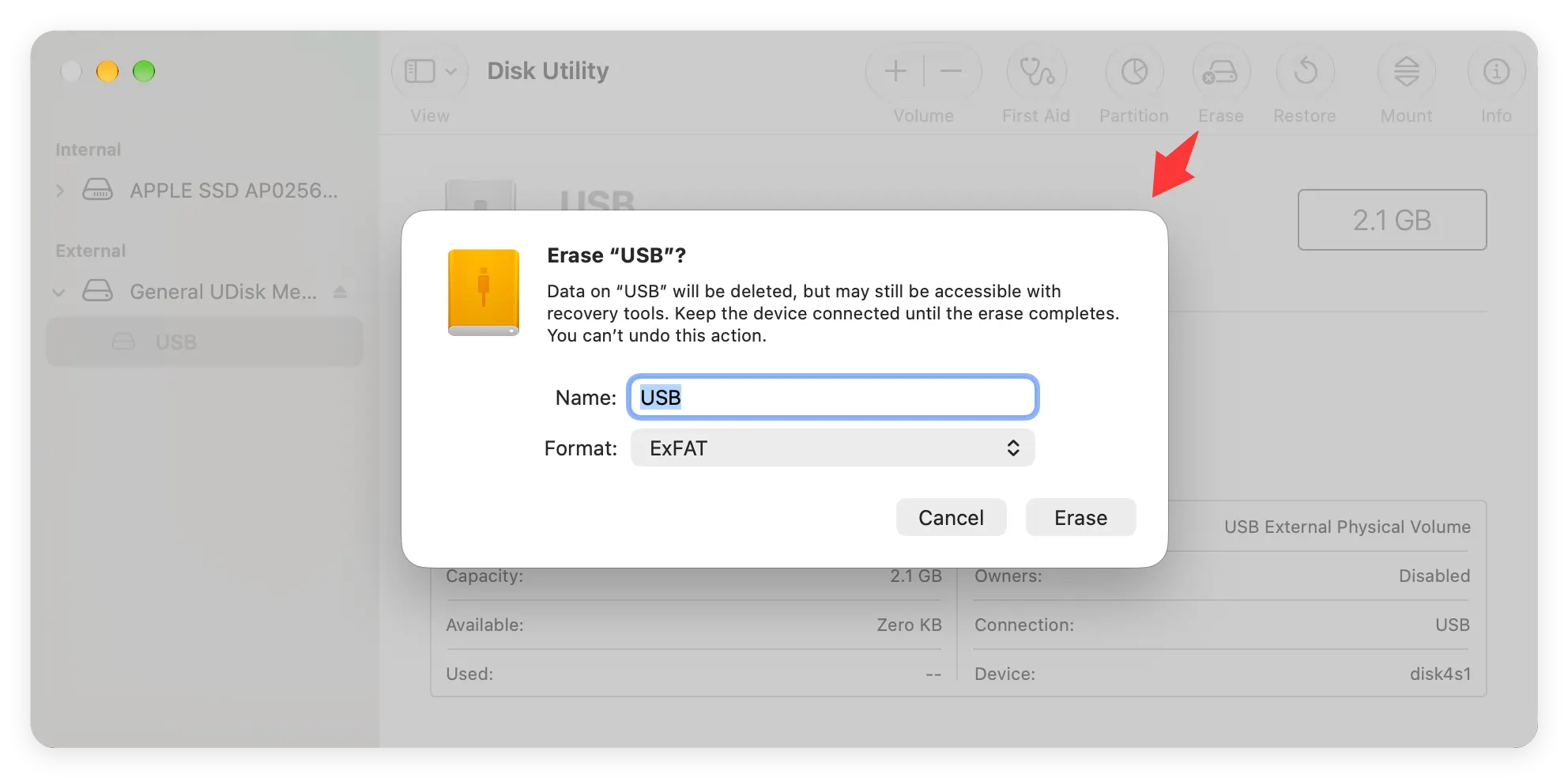
Step 2: Click the Erase button in the top menu.
Step 3: Name your drive and choose a compatible file system (exFAT for cross-platform support, or APFS/Mac OS Extended for Mac-only use).
Step 4: Click Erase to finalize formatting.
FAQs about USB Drive Not Recognized on macOS 27
Final Conclusion
Having an external storage drive vanish after a macOS update can be stressful. However, knowing how to fix USB drive is not recognized on macOS 27 Golden Gate step-by-step makes the recovery process straightforward.
Always start with basic hardware and settings checks. If the drive remains unmountable, prioritize your data safety by using Do Your Data Recovery for Mac before executing advanced disk repairs or formatting. With the right approach, your USB drive and files will be restored in no time.
Do Your Data Recovery for Mac
Do Your Data Recovery for Mac, one of the best Mac data recovery software, can help you easily and completely recover deleted, formatted or lost files from Mac HDD/SSD, external HDD/SDD, USB drive, memory card, digital camera, or other storage devices.
Written & Updated by Ricky Lin
Ricky Lin is an senior editor of DoYourData who lives in Adelaide, Australia. He is interested in writing technology articles related with data recovery, computer issue fixes, disk clone, iPhone data recovery, video edit, Mac optimization, etc. He Joined DoYourData in 2019 and have written 500+ articles to help both Windows users and Mac users to solve data or computer problems.
Hot Articles
- Fix External Hard Drive Read-Only Issue on Mac
- How to Wipe Trash Bin on Mac?
- Recover Lost Data from WD (Western Digital) External Hard Drive on Mac
- Fix External Hard Drive Not Showing Up on Mac
- How to Wipe SD Card on Mac?
- Mount and Unmount the External Hard Drive on the Mac
- Run First Aid on Mac to Repair Disks
- Fix Can't Save Files to An External Hard Drive on Mac
- (Solved) External SSD Not Detected in Disk Utility on Mac
- Why Can't Format A Hard Drive To NTFS on Mac? Can We Fix It?