Should I Install macOS 27? Here is Everything You Need to Know
 Ricky Lin updated on July 3, 2026
Quick Navigation:
- The Massive Shift: Is Your Mac Actually Supported?
- Exciting New Features in macOS 27 Golden Gate
- Legacy Features Being Removed
- Should You Install It Right Now? Weighing the Risks
- Crucial Step: Back Up Mac before Upgrading
- Conclusion: Making an Informed Choice
- FAQs about macOS 27 Golden Gate Update
Apple has officially given us a sneak peek into the future of the Mac with the announcement of macOS 27 Golden Gate. Packed with amazing features, redesigned visual choices, and the next leap in Apple Intelligence, it is easy to understand why every Mac owner is eager to hit the 'Update' button.
But before you make that big leap, you need to step back and ask yourself a very important question: Should I install macOS 27 Golden Gate on my computer right now?
The answer is not a simple 'yes' or 'no' for everyone. Depending on what Mac model you own, how you use your machine daily, and your tolerance for potential software bugs, upgrading might be a brilliant move or a premature choice that disrupts your work.
The Massive Shift: Is Your Mac Actually Supported?
Before discussing any new features, we must address the most significant change Apple has introduced with this version. It is an absolute dealbreaker for millions of Mac users around the world.
If you are using an Intel-based Mac, you cannot install macOS 27 Golden Gate. Apple has officially dropped support for all Intel processors starting with macOS 27. This release marks the official and final completion of the transition to Apple silicon.
Official macOS 27 Golden Gate Supported Hardware List
To install macOS 27 Golden Gate, your machine must be equipped with an Apple Silicon M1 chip or later, or an A18 Pro chip or later. Here is the official list of compatible hardware:
- MacBook Air (M1, 2020 or later)
- MacBook Pro (13-inch, M1, 2020 or later)
- MacBook Pro (14-inch and 16-inch, 2021 or later)
- Mac Mini (2020 or later)
- iMac (2021 or later)
- Mac Studio (2022 or later)
- Mac Pro (2023)
- MacBook Neo (A18 Pro, 2026)
💡 Note: While all these models can run the core features of macOS Golden Gate, some advanced capabilities have higher resource demands. For instance, the highly anticipated on-device Siri AI features require at least an M3 chip and a minimum of 12GB of RAM.
Exciting New Features in macOS 27 Golden Gate
If your Mac is on the compatible list, you might be curious about what makes this upgrade so special. Let's look at the most prominent features that make macOS 27 Golden Gate stand out from its predecessors.
1. Next-Generation Siri AI and Apple Intelligence
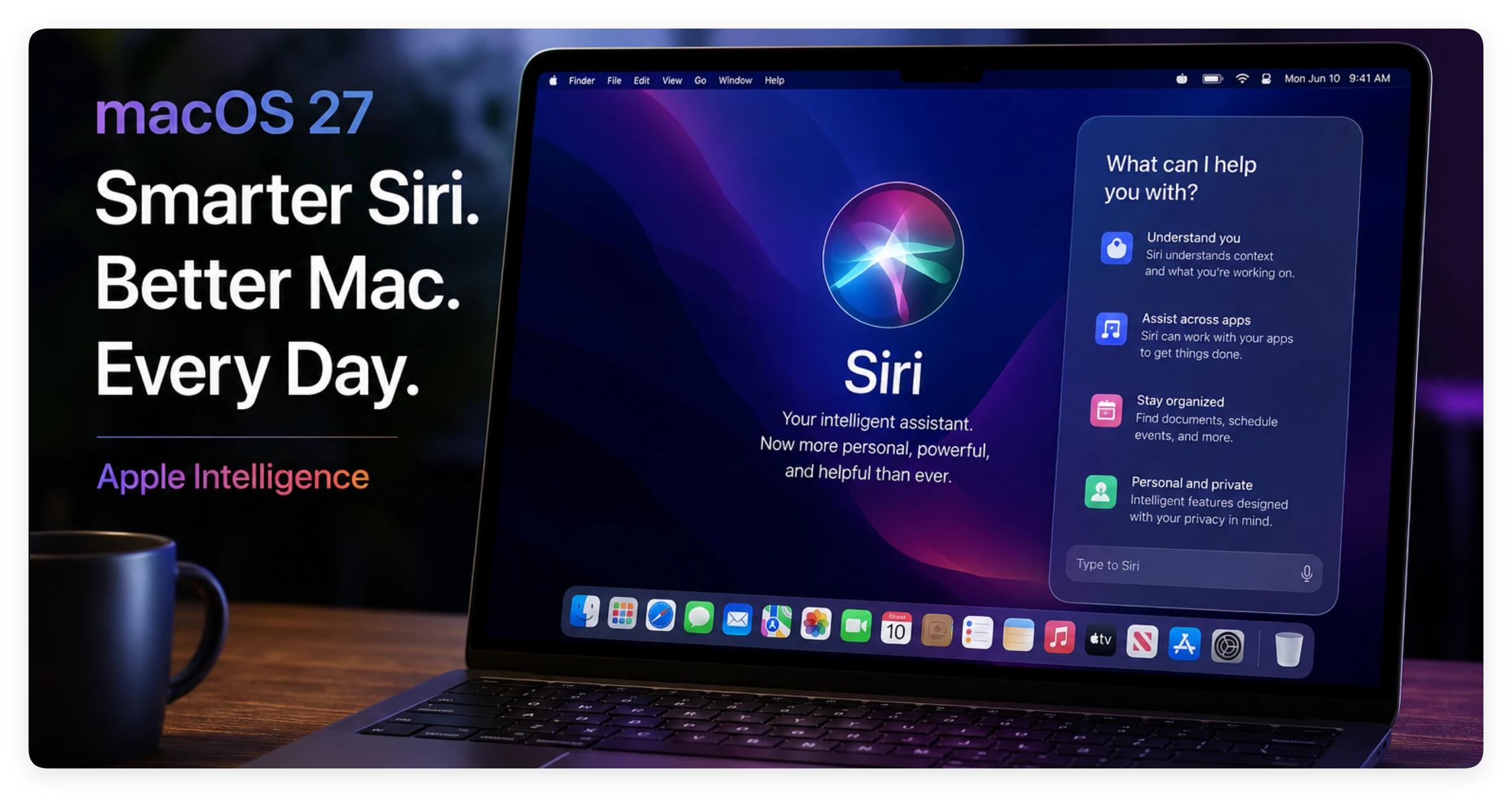
The crown jewel of macOS 27 is the upgraded Siri AI. This isn't just a regular digital assistant anymore. Powered by deep Apple Intelligence, Siri now possesses real-time personal context. It understands what is happening on your screen and can manage complex commands across different apps.
2. The Liquid Glass UI Refinement
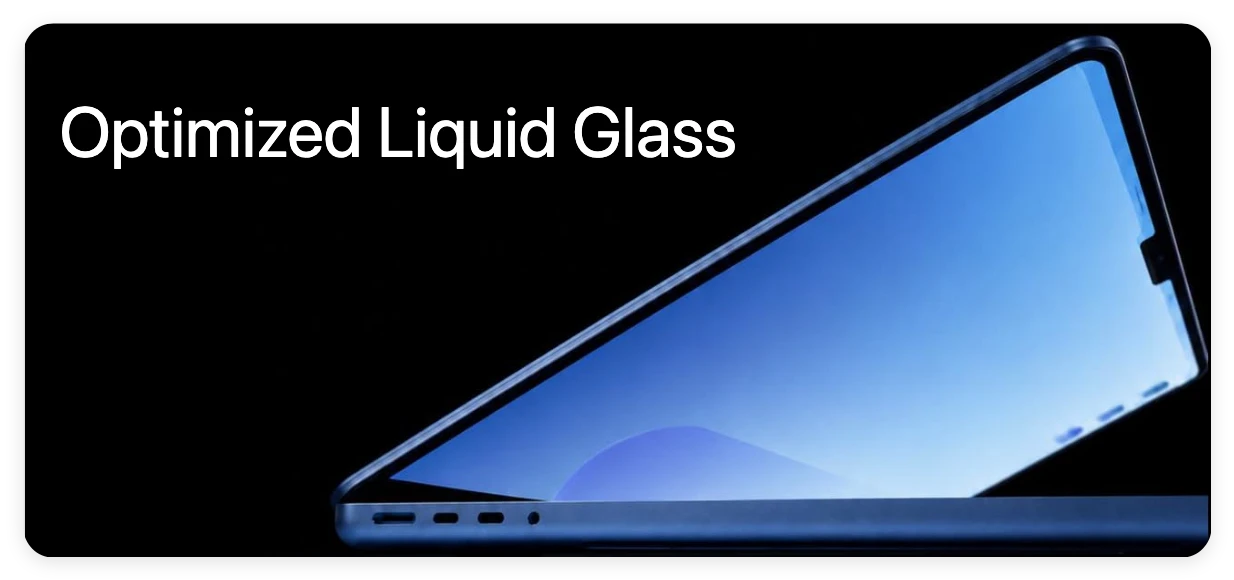
Visually, macOS 27 introduces the 'Liquid Glass' user interface. Apple has subtleized the windows, brought system-wide HDR into effect, and completely refreshed system icons. The new look features bolder colors and adjusted refractive designs that make the interface look layered, crisp, and hyper-modern.
3. Pull-to-Refresh in Core Desktop Apps
Borrowing a favorite feature from iOS and iPadOS, macOS 27 adds a natural pull-to-refresh mechanism to native apps. Using your trackpad, you can simply pull down inside Safari, Mail, News, Podcasts, and Calendar to update your feeds instantly. This makes navigation between Apple devices feel completely unified.
4. Smarter Finder and Filenames
Managing your files becomes much easier with AI-powered filenames in the Finder. If you import a batch of poorly named photos or documents, the system can analyze their content and suggest descriptive, organized names automatically. Additionally, managing windows is simpler with new built-in Move & Resize keyboard shortcuts.
Legacy Features Being Removed
An upgrade doesn't just mean adding new things; it also means letting go of the old. To keep the operating system lean and secure, Apple is phasing out several legacy technologies in macOS 27.
First, the built-in DVDPlayback framework is officially deprecated. This means the classic native DVD Player app is nearing the end of its life. If you still rely on an external drive to watch physical DVDs, you will need to switch to third-party tools like VLC Media Player soon.
Second, Apple has removed support for the old Apple Filing Protocol (AFP). This change impacts users who still utilize older network storage options or older AirPort Time Capsule routers for their backups. Network file sharing now relies completely on modern SMB protocols.
Should You Install It Right Now? Weighing the Risks
Now we arrive at the core dilemma: Should you install macOS 27 Golden Gate today? The answer depends largely on which version of the operating system is currently available to you.
If macOS 27 is still in its Beta phase (Developer Beta or Public Beta), the answer for most everyday users should be a cautious 'No'—at least not on your main computer. Beta software is inherently unfinished. It is designed for testing, meaning it contains unexpected bugs, battery drain issues, and random application crashes.
If a critical app you use for school, work, or creative projects hasn't been updated to support macOS 27 yet, an upgrade could disrupt your productivity completely. If you are desperate to try out the new Siri AI features during the beta period, the safest approach is to install it on a separate APFS volume, allowing you to switch back to your stable operating system whenever needed.
Even when the final, stable public version releases later this autumn, rushing to upgrade on day one carries minor risks. Waiting for the initial patch (like macOS 27.0.1) gives developers time to resolve minor glitches.
Crucial Step: Back Up Mac before Upgrading
Whether you decide to install the beta version today or wait for the official public release later this year, there is one non-negotiable step you must take before upgrading your operating system: backing up your files.
That is where DoYourClone for Mac comes in. DoYourClone for Mac is a powerful, user-friendly software designed to create an exact, 1-to-1 bootable clone of your Mac's hard drive onto an external storage device.
DoYourClone for Mac
- Create complete clone backup for Mac.
- Make 1:1 copy of your Mac before macOS update.
- Clone macOS to external drive and make it bootable.
Unlike a standard backup, a bootable clone copies everything—your operating system, custom settings, user profiles, hidden files, and applications. If the macOS 27 Golden Gate installation fails or if you find yourself deeply disliking the new system, you don't need to panic.
How to use DoYourClone for Mac before upgrading:
- Download and install DoYourClone for Mac on your computer.
- Connect a reliable external hard drive or SSD with enough storage space.
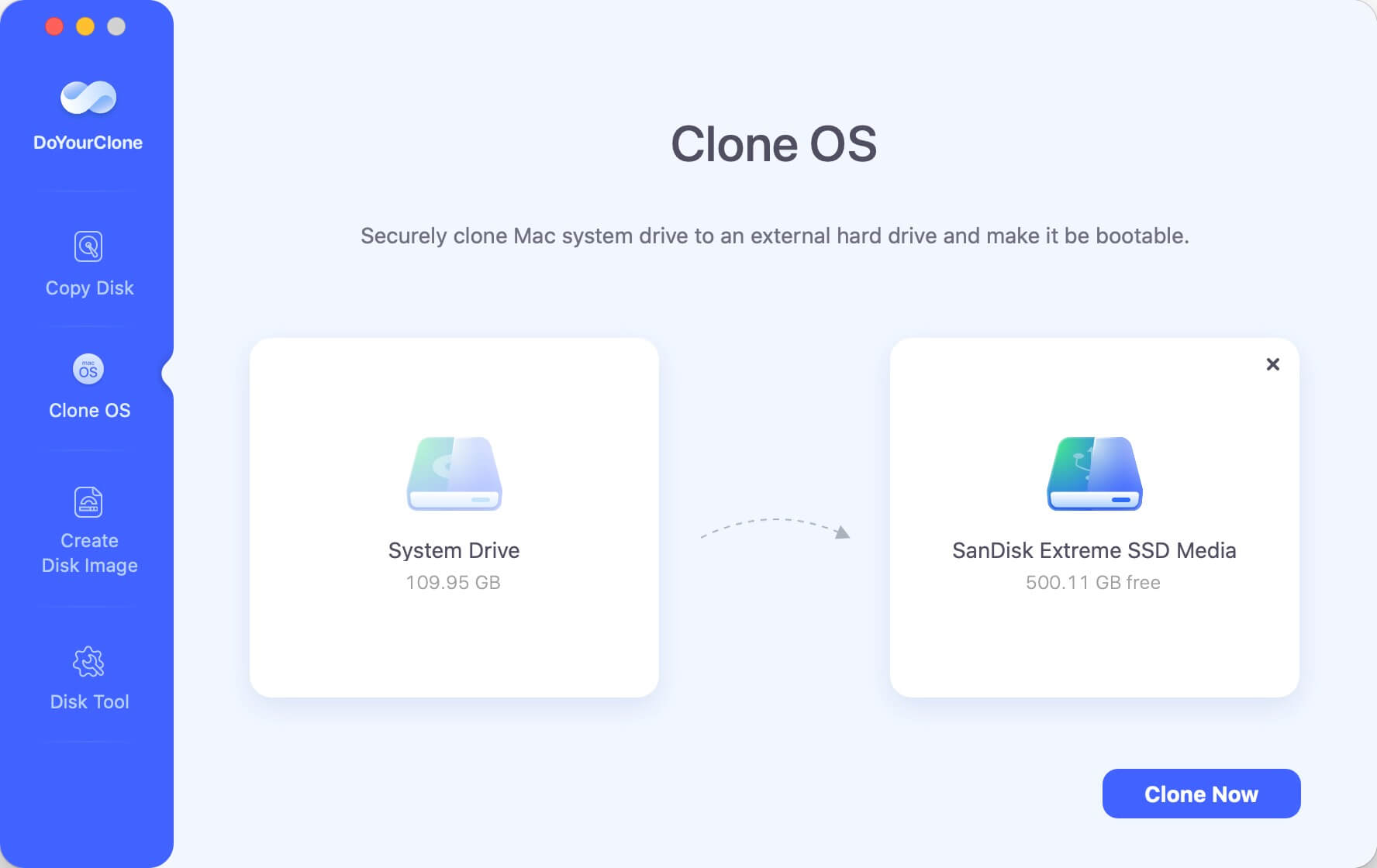
- Open the software and choose the Clone OS.
- Your Mac's internal drive is selected as the source by default, you can just choose your external drive as the destination.
- Click the Clone Now button and let the software build your secure backup.
Conclusion: Making an Informed Choice
So, should I install macOS 27 Golden Gate? If your Mac has an Intel processor, the decision has been made for you—the system is unsupported, and you should stay on your current version to keep your Mac running securely.
If you own an Apple silicon Mac and are excited about next-gen Siri AI, smoother Liquid Glass visuals, and enhanced Finder tools, the upgrade is highly rewarding. However, protect your workflow. Avoid installing early betas on primary work machines, and always ensure you have a complete, bootable clone ready.
FAQs about macOS 27 Golden Gate Update
DoYourClone for Mac
DoYourClone for Mac, one of the best Mac disk cloning software, can help you clone HDD, SSD, external storage device on Mac, upgrade HDD to SSD, create full disk image backup, etc. It also can clone everything from your Mac to an external HDD/SSD and create a full bootable clone backup. 100% safe and easy-to-use.
Written & Updated by Ricky Lin
Ricky Lin is an senior editor of DoYourData who lives in Adelaide, Australia. He is interested in writing technology articles related with data recovery, computer issue fixes, disk clone, iPhone data recovery, video edit, Mac optimization, etc. He Joined DoYourData in 2019 and have written 500+ articles to help both Windows users and Mac users to solve data or computer problems.