How to Format External/USB Drive or SD Card on macOS 27 Golden Gate?
After formatting an external drive, thumb drive, or memory stick with Disk Utility on Mac, the data is not gone forever. There is a great chance to recover the formatted data with professional recovery tools. If you need to ensure the data is unrecoverable after formatting it, use DoYourData Super Eraser for Mac to permanently wipe the drive or card.
 Updated by Shirly Chen on June 29, 2026
Quick Navigation:
- Why Do You Need to Format Your Drive or Card?
- Method 1: Format Using Disk Utility
- Method 2: Securely Format with Erasure Tool
- FAQs about Drive Formatting on macOS 27
- The Verdict
Connecting an external storage drive to your Mac is a great way to back up files, move data between devices, or clear out old storage. But if you have just upgraded to the brand-new macOS 27 Golden Gate, you might notice that some system layouts look a bit refreshed.
Don't worry. Formatting your external hard drive, USB flash drive, or memory card (SD card) on macOS 27 Golden Gate is still a very quick and simple process.
In this complete, step-by-step guide, we will walk you through the two easiest ways to get the job done. First, we will show you how to use the built-in system tools for a standard format. Second, we will show you how to securely format and wipe your drive so that no one can ever recover your private files. Let's dive in!
Why Do You Need to Format Your Drive or Card?
Before we look at the steps, it is helpful to know why formatting is useful. Most external storage devices you buy from a retail store come pre-formatted for Windows computers. If you plug them directly into a Mac, you might find that you can only read or open the files, but you cannot write or save any new data onto the drive.
Formatting fixes this instantly. It prepares the drive with a file system specifically for your Mac's Operating System, cleans out unwanted hidden cache files, fixes minor file system bugs, and gives you a completely fresh start with maximum transfer speeds.
⚠️ Important Warning: Formatting will completely erase everything currently saved on your external drive or memory card. Before you proceed, make sure you copy any important files to your Mac internal storage or another backup disk!
Method 1: Format Using Disk Utility
The standard way to erase a storage device is by using Disk Utility. This is a free app built right into your Mac. It is perfectly designed for everyday tasks, like setting up a new backup drive or clearing out an old thumb drive.
Follow these quick steps to format your drive or memory card on macOS 27 Golden Gate:
Step 1: Plug in your device
Connect your external hard drive, USB flash drive, or SD card reader into your Mac computer. If you are using a modern MacBook, you may need a USB-C adapter.
Step 2: Open the Disk Utility Application
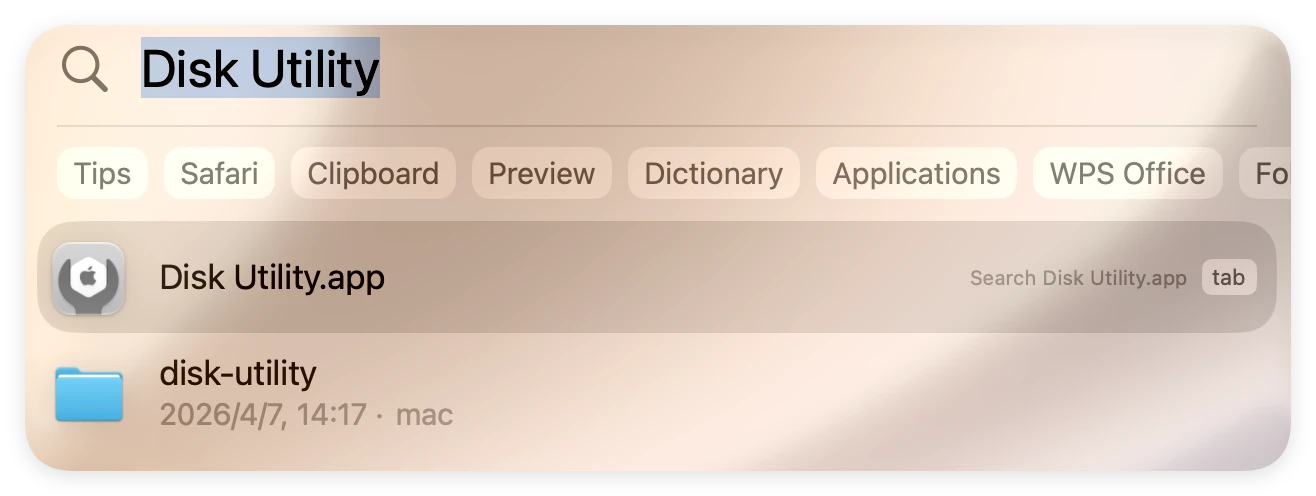
Press the Command key and Spacebar at the same time to open Spotlight Search. Type in 'Disk Utility' and hit Enter. (Alternatively, you can open your Applications folder, click on Utilities, and find the Disk Utility icon there.)
Step 3: Select your storage drive
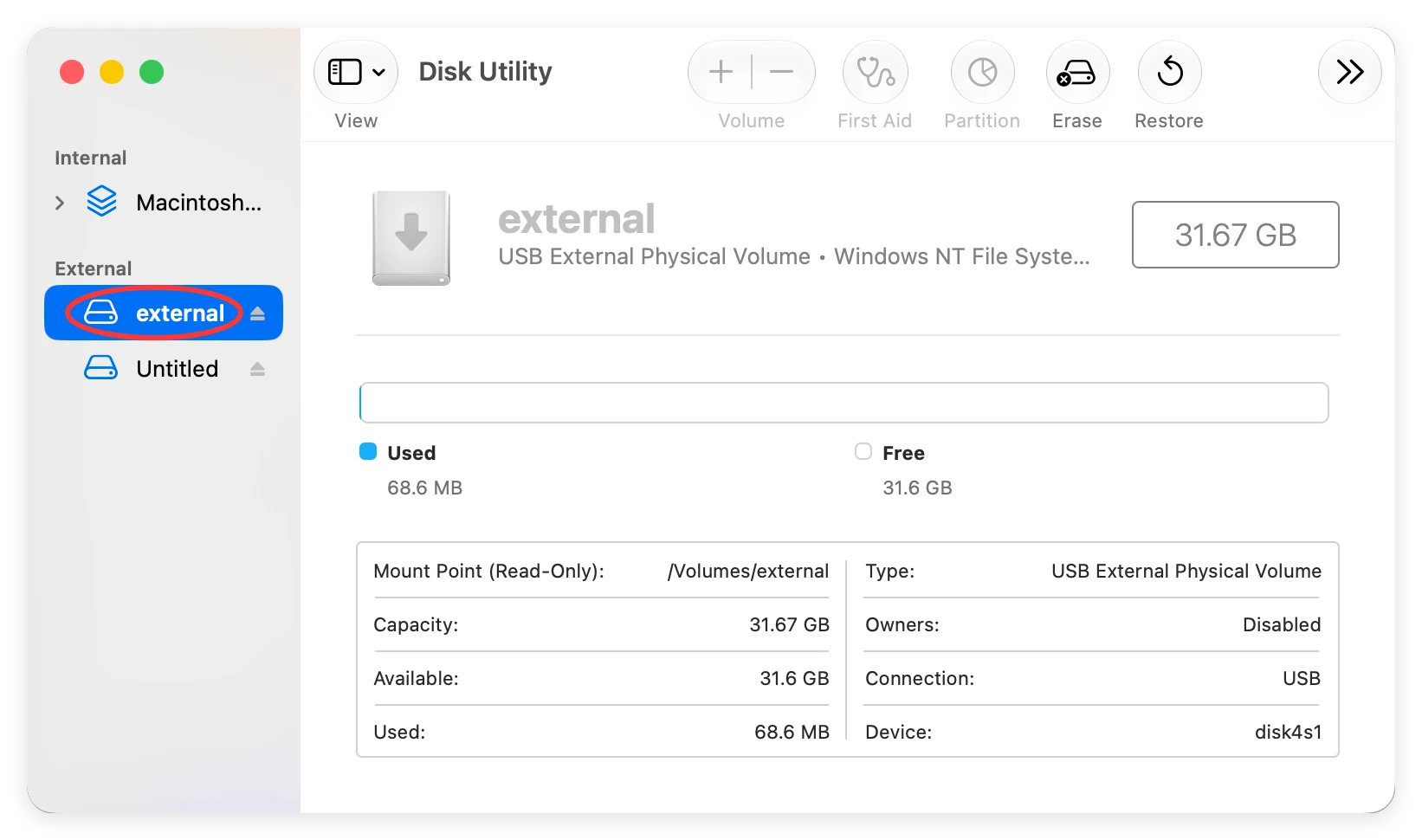
Look at the left sidebar of the Disk Utility window. Under the 'External' section, find and click on the name of your external drive, USB stick, or memory card.
Step 4: Click on the Erase button
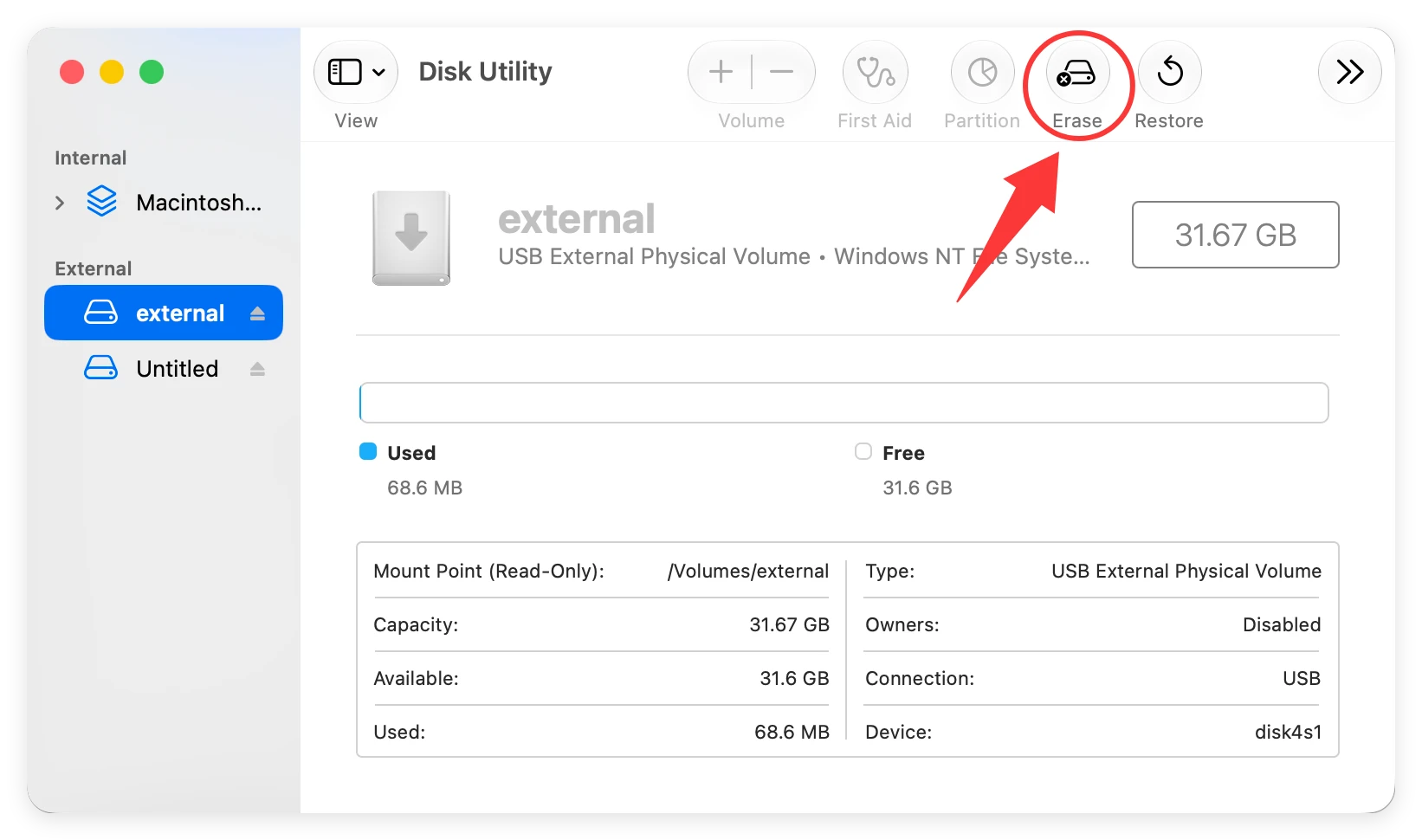
Move your mouse cursor to the top tool menu of the window. Click on the Erase button. A small setup settings box will pop up on your screen.
Step 5: Choose a name and format type
Give your drive a recognizable new name. Next, choose the best file system format for your daily needs from the dropdown list:
- APFS: Best choice if you only use this drive on modern Mac computers running recent macOS systems.
- Mac OS Extended (Journaled): Ideal if you need to use the drive on older Mac computers.
- ExFAT: The smartest choice if you plan to plug this drive into both Windows PCs and Mac computers regularly.
- MS-DOS (FAT): Good for small memory cards or older devices, but it cannot hold individual files larger than 4GB.
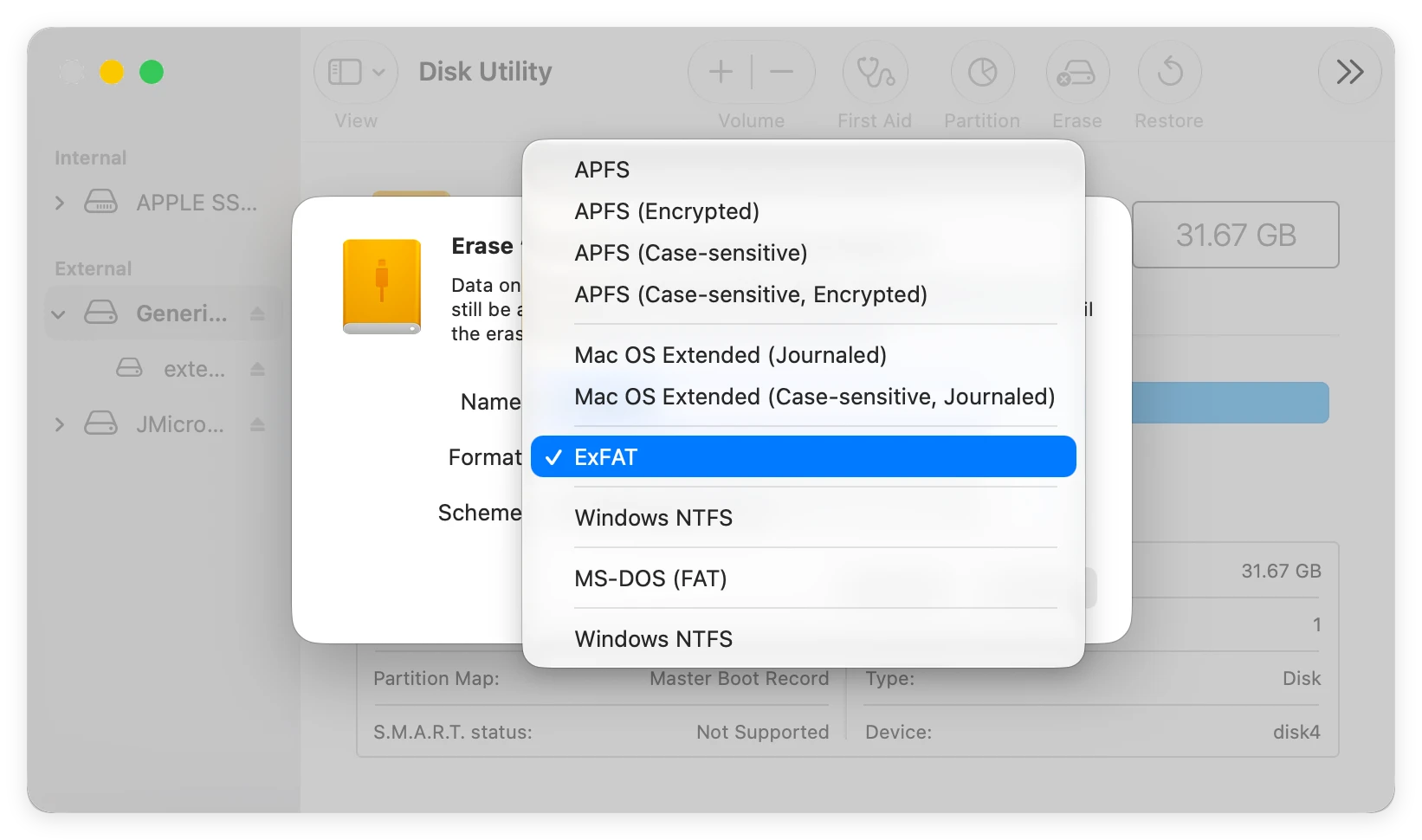
Step 6: Complete the process
Click the final Erase button at the bottom right of the pop-up box. macOS 27 Golden Gate will configure the drive in a few seconds. Once it is finished, click 'Done'. Your storage drive is now ready to use!
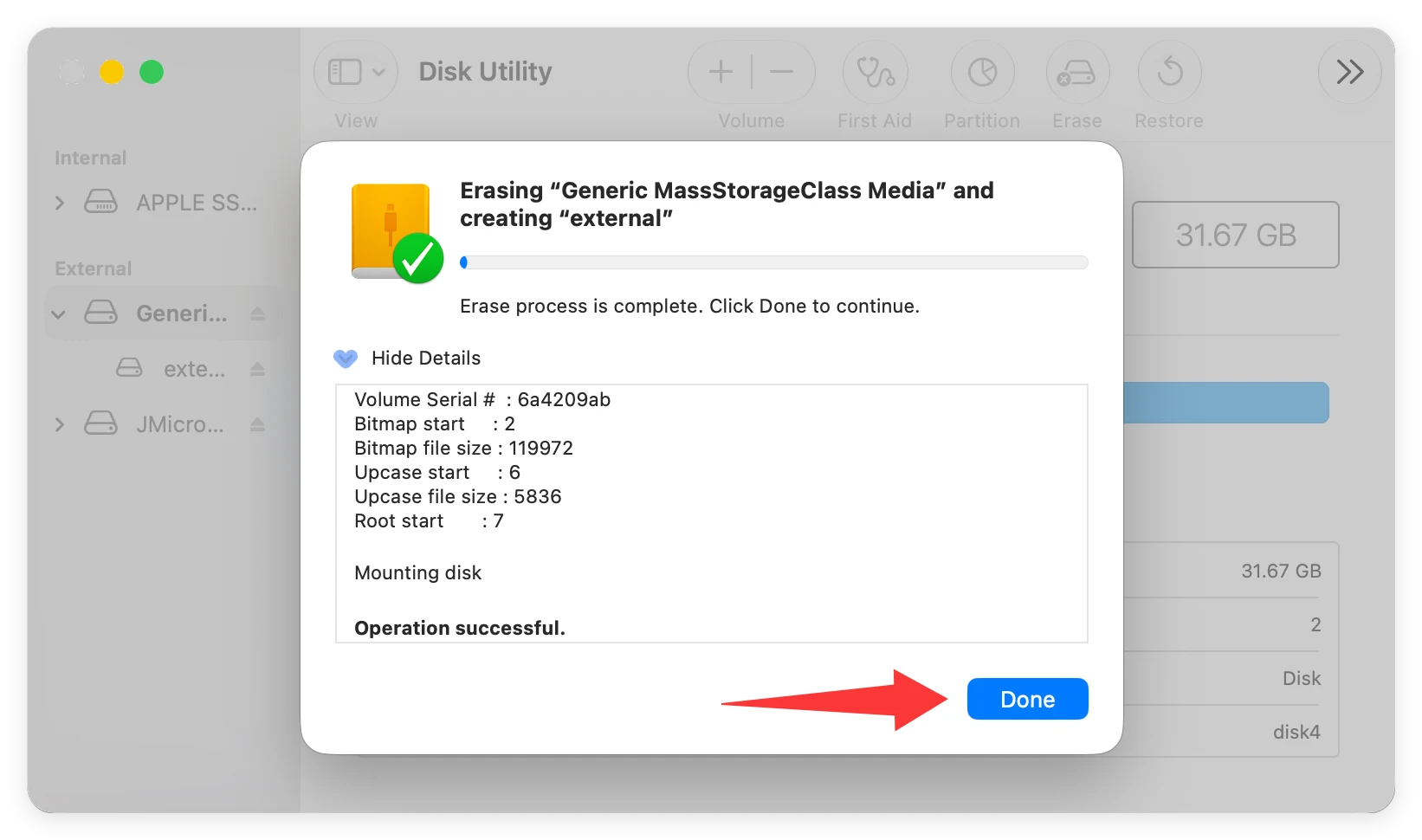
Method 2: Securely Format with Erasure Tool
The built-in Disk Utility tool is great for basic file organization. However, there is a catch that most users do not know: standard formatting does not permanently destroy your data.
When you format a drive with Disk Utility, the system simply deletes the file pathway markers. The actual data remains hidden on the drive until new files overwrite it. This means someone using simple data recovery software could easily recover your personal photos, tax papers, corporate records, or private passwords.
If you plan to sell your old external hard drive, give away your USB stick to a friend, or donate an SD card to a school, you need a safer option. This is where DoYourData Super Eraser for Mac comes in.
DoYourData Super Eraser for Mac
- Format drive and permanently wipe data.
- Compatible with macOS 27 Golden Gate.
- Securely format drive to avoid data recovery.
DoYourData Super Eraser for Mac uses advanced, military-grade data wiping technology. It formats the drive and writes random data over the old file sectors. Once finished, the original data is completely overwritten and becomes 100% unrecoverable by any data recovery tool on Earth.
Here is how to securely wipe your drive using DoYourData Super Eraser:
Step 1: Connect the device and launch the software
Connect your external drive, USB stick, or SD card to the Mac. Open the application from your Launchpad.
Step 2: Choose the data erasure mode and select device.
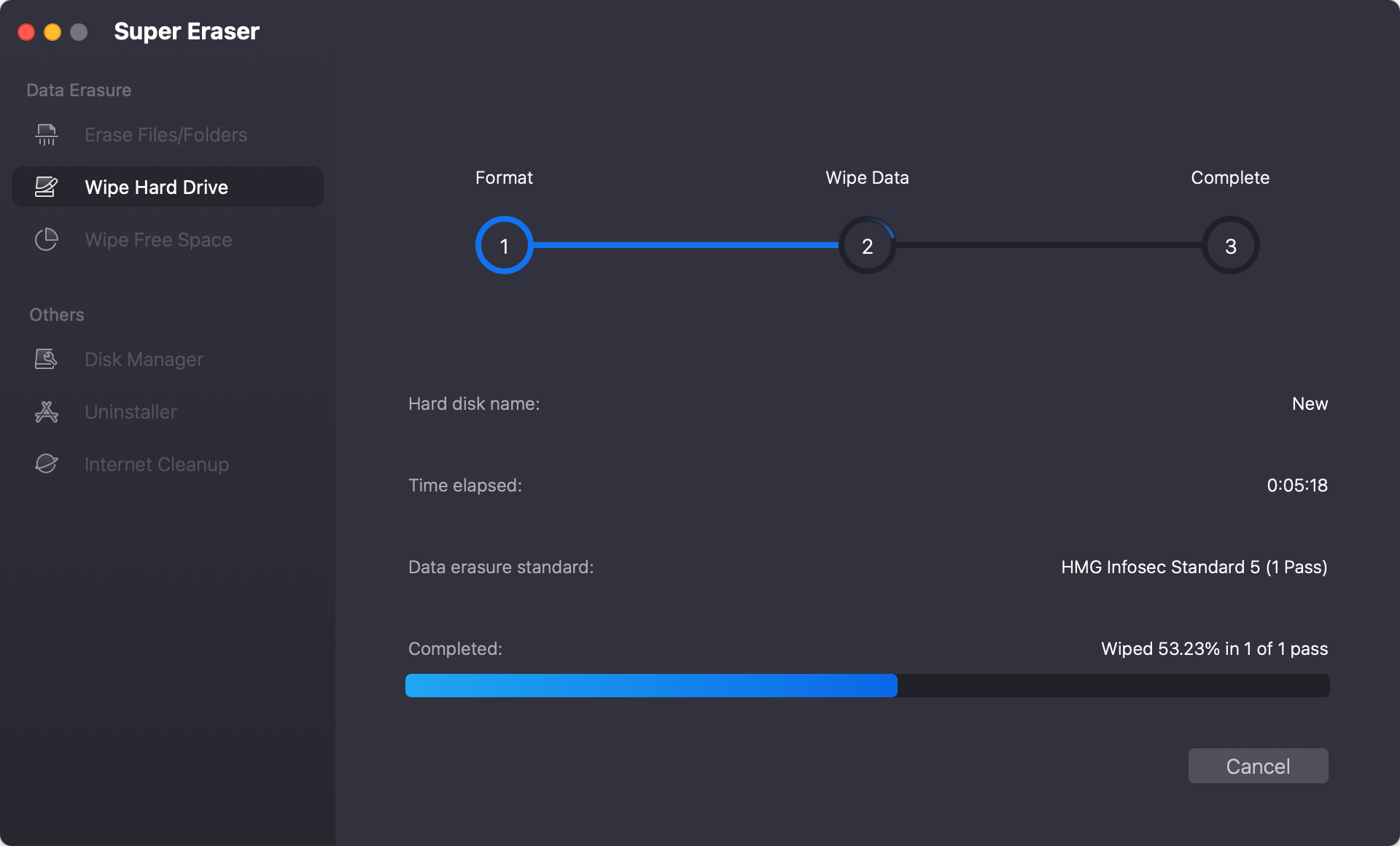
On the main control menu dashboard, click on the mode titled Wipe Hard Drive. This feature is built to handle complete external storage wipes. The app will display a list of all drives connected to your Mac. Check the tick box next to your external hard drive, USB thumb drive, or inserted memory card.
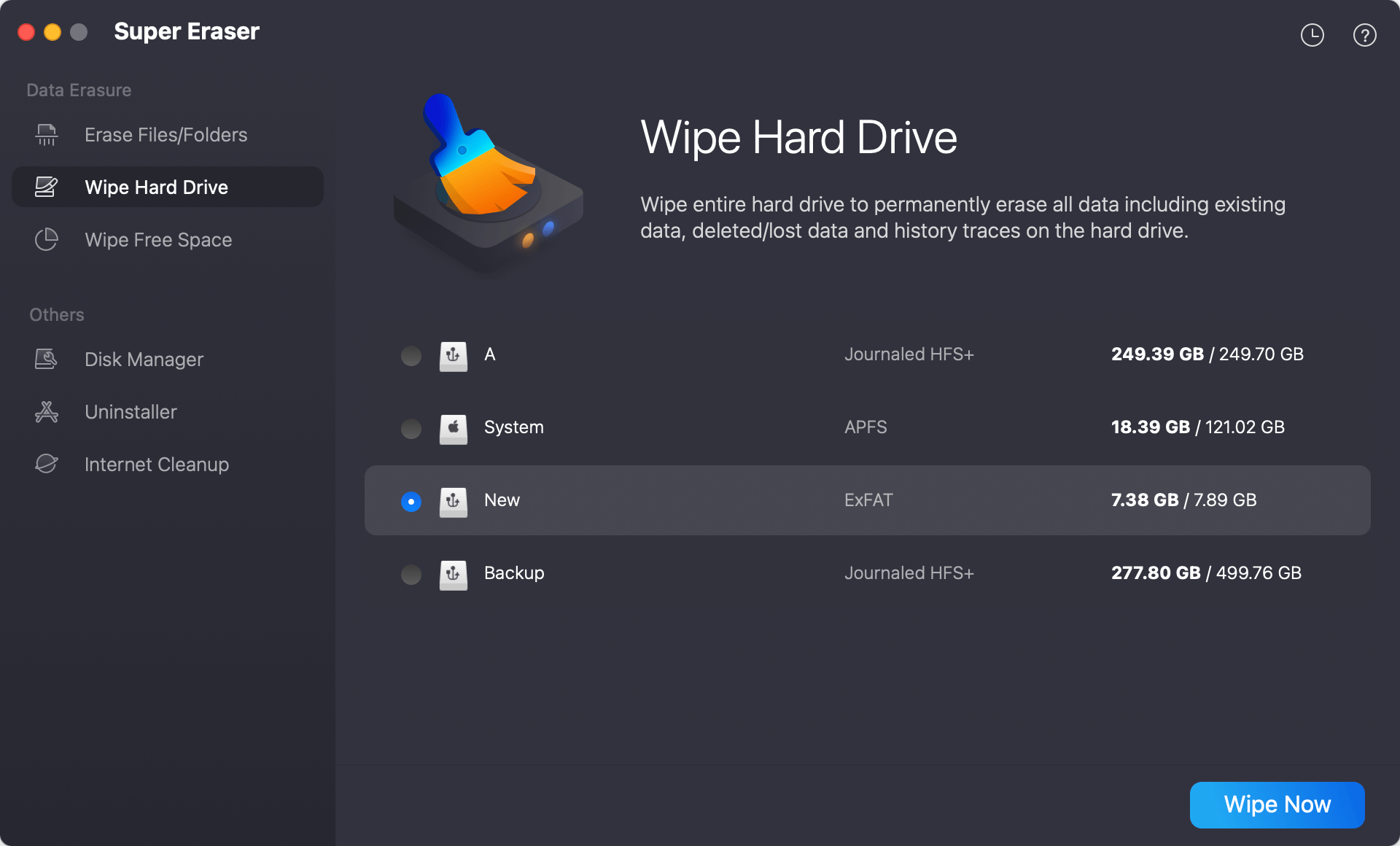
Step 3: Choose the data erasure standard and start wiping
Click the large blue Wipe Now button at the bottom of the dashboard screen. Then you can select a data erasure standard for data wiping. Click Continue button to confirm and start wiping. The software will perform a deep format and safely overwrite every single sector on the drive.
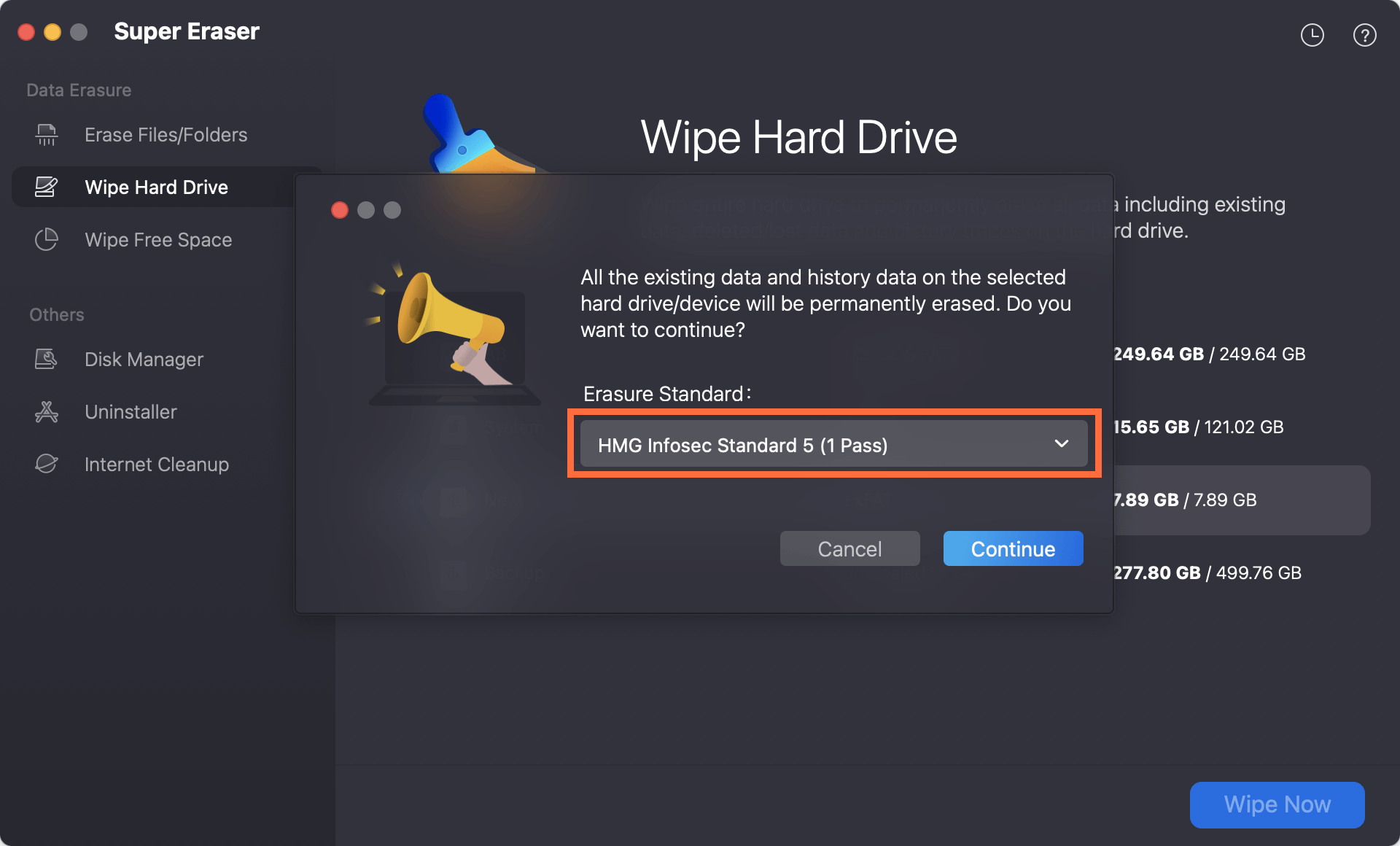
Step 4: Verify completion
Once the wiping process completes, your drive will be perfectly clean and safely formatted. You can now sell or donate it with complete peace of mind, knowing your privacy is fully protected.
FAQs about Drive Formatting on macOS 27
The Verdict:
Formatting an external hard drive/USB drive/memory card on macOS 27 Golden Gate is straightforward once you know which tool to pick. For basic cleanup and organizing personal files, the built-in Mac Disk Utility app works beautifully.
However, if you are preparing a drive for resale, recycling, or giving it to another person, don't risk your data privacy. Use DoYourData Super Eraser for Mac to permanently erase your files and secure your digital life in just a few clicks.
DoYourData Super Eraser for Mac
DoYourData Super Eraser for Mac is a 100% safe, powerful and easy-to-use data erasure program. It offers certified data erasure standards including Peter Gutmann, U.S. Army AR380-19, DoD 5220.22-M ECE to permanently erase data from Macs and external devices, making data recovery be impossible.
Written & Updated by Shirly Chen
Shirly Chen has been writing data recovery, data erasure articles for DoYourData over 4 years. She has been working as a professional website content writer & editor for quite a long time. She also writes articles about disk clone, Mac optimization, disk backup, etc.